Skip to content

Subtitles

Wayaframe generates subtitles with AI transcription from any audio source: a single video clip, an audio file, or the full mixed audio from your entire timeline. Every word gets precise timing, giving you full control to style, highlight, translate, and fine-tune subtitles down to the individual word. Choose from 23+ style presets or create your own custom styling, with active word highlighting, translate into multiple languages, and export as burned-in captions or downloadable SRT files.

Subtitles Manager

Generating subtitles

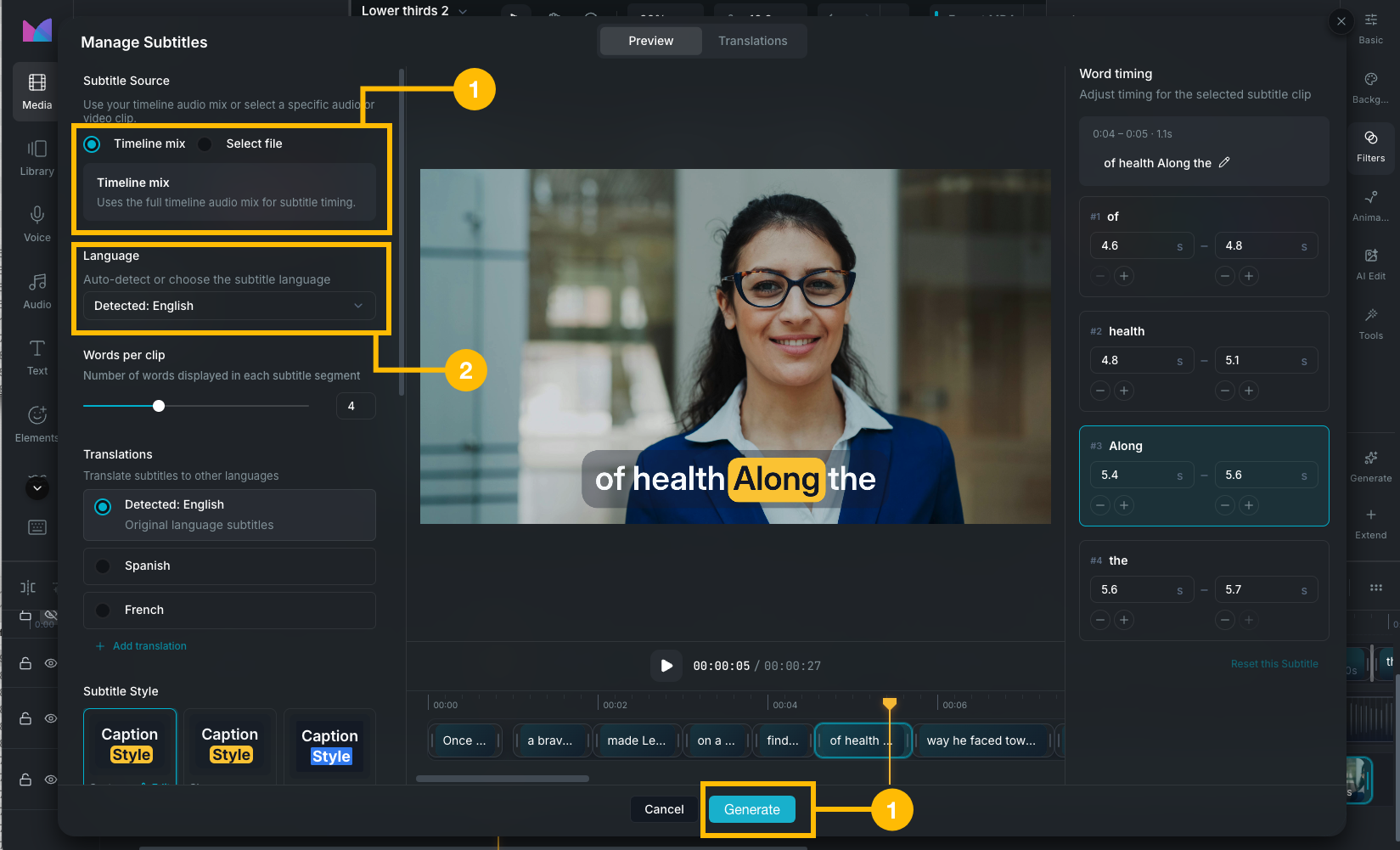
Open the Subtitles tool from the timeline toolbar to launch the Subtitle Manager.

  1. Choose an audio source:
    • Timeline: uses the mixed audio from all audible tracks in your project.
    • Media file: uses a specific audio or video file from your Library.
  2. Select the language spoken in the audio, or leave it on auto-detect and Wayaframe will identify the language automatically.
  3. Click Generate. Wayaframe transcribes the audio using AI and produces word-level timestamps.

Transcription supports 99+ languages including English, Spanish, French, German, Italian, Portuguese, Chinese, Japanese, Korean, Arabic, Hindi, and many more.

Once generated, subtitles appear as clips on a dedicated subtitle track in the timeline and are immediately visible on the canvas.

The Subtitle Manager

The Subtitle Manager is the central workspace for all subtitle editing. It contains five areas:

  1. Configuration panel (left): audio source, language, words-per-clip setting, style presets, and translation controls.
  2. Canvas preview (center): real-time preview showing your subtitles with all styling and highlighting applied.
  3. Subtitle timeline (bottom): a visual timeline showing each subtitle segment as a clip block. Click any segment to select it. The playhead syncs with the main editor timeline.
  4. Timing editor (right): edit the text and individual word timing for the selected segment.
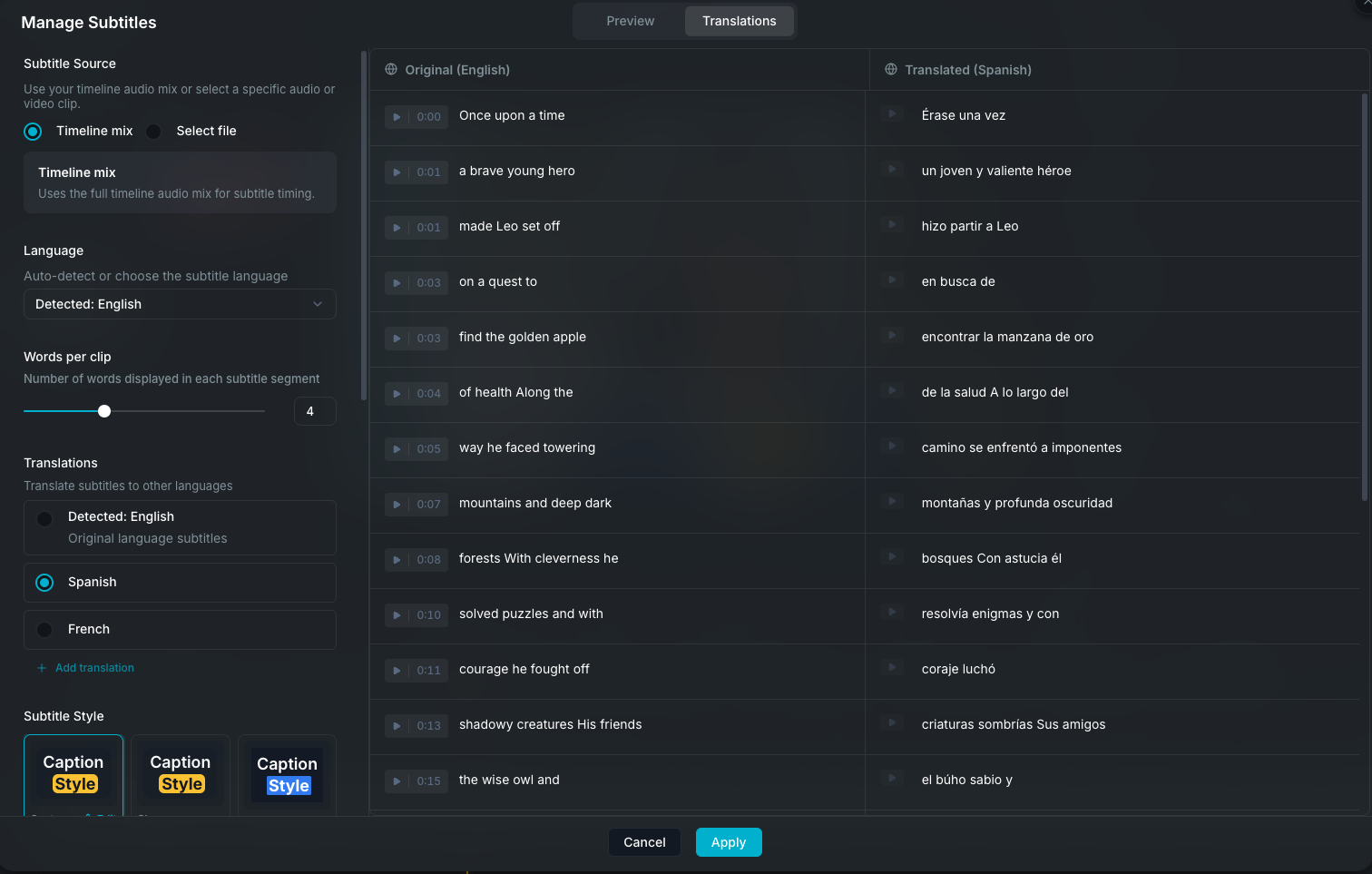
  5. Translation panel: view and edit translations for each subtitle segment.

Words per clip

The Words per clip slider (1 to 10) controls how many words appear on screen at a time. The default is 4 words per clip. Lowering this shows fewer words per subtitle (faster reading pace, more clips), while raising it shows more words at once (fewer clips, denser text).

You can also set custom clip breaks by specifying exactly where subtitle segments should split, overriding the words-per-clip setting for more precise control.

Editing subtitle text

Select a subtitle segment in the timeline or timing editor to edit its text. You can:

  • Edit the full segment text: change the wording, fix transcription errors, or rewrite.
  • Edit individual words: each word in the segment is shown separately with its own timing.

When you change the number of words in a segment, Wayaframe automatically redistributes the word timing to keep everything in sync.

Word-level timing

Every word has its own start and end time, giving you precise control over when each word appears and how long it stays highlighted.

In the timing editor:

  • Time inputs: adjust the start and end time for each word in seconds.
  • Nudge buttons: shift a word's timing forward or backward in small increments for fine-tuning.

Word timing is validated automatically. Words cannot overlap, and each word has a minimum display duration to ensure readability.

Subtitle styles

Wayaframe includes 23 built-in style presets that control the complete look of your subtitles. Click any preset to apply it instantly.

Available presets

  • Clean: light text on a semi-transparent dark background.
  • Boxed Dark: white text in a dark rounded box.
  • Boxed Light: dark text on a light semi-transparent background.
  • Bold Impact: uppercase display font with no background.
  • Gradient Pop: gradient text effect with bold colors.
  • Neon Glow: futuristic font with glowing shadow effects.
  • Retro VHS: pixel-style font with a vintage feel.
  • Minimal: subtle styling with only a color change on highlight.
  • Cinematic: elegant serif font for narrative content.
  • Playful: rounded, friendly font with a colorful highlight.
  • Corporate: clean sans-serif with a professional highlight.
  • Handwritten: informal script-style font.
  • News Ticker: bold uppercase text on a solid colored background.
  • Gaming: tech-style font with vibrant highlight colors.
  • Podcast: soft rounded font with a warm highlight.
  • Social Media: modern sans-serif with gradient highlight.
  • Documentary: italic serif for narration-style subtitles.
  • Vintage: warm sepia tones with classic serif typography.
  • High Contrast: maximum contrast black and white.
  • Soft Pastel: gentle colors with a light background.
  • Boxed Outline: text with outline only, no filled background.
  • Shadow: text with drop shadow effect, no background.
  • Boxed Soft: light rounded background with clean typography.

Custom styling

Every aspect of the subtitle appearance can be customized beyond presets:

  • Font: family, size, weight (normal to bold), style (normal or italic), and letter spacing.
  • Text color: solid color or gradient.
  • Text transform: uppercase, lowercase, capitalize, or none.
  • Stroke: outline color and width around the text.
  • Shadow: one or more drop shadows with offset, blur, and color.
  • Background box: toggle on or off. When enabled, configure the background color, opacity, padding (horizontal and vertical), and corner radius.
  • Text alignment: left, center, or right.
  • Position: subtitles are positioned at the bottom of the canvas by default, centered horizontally.

Active word highlighting

As each word is spoken, it can be highlighted with a distinct visual style. This creates a karaoke-like effect that guides the viewer's eye to the current word.

Highlight style

The highlight style is configured separately from the base subtitle style. You can set a different:

  • Text color for the active word.
  • Background color, padding, and corner radius for the highlight box.
  • Font weight override (e.g. bold the active word).

Enabling and disabling

Toggle word highlighting on or off from the configuration panel. When disabled, all words in the subtitle appear with the same style throughout playback.

Translating subtitles

Reach a global audience by translating your subtitles into multiple languages with AI. Add as many languages as you need and switch between them instantly.

Adding a translation

From the configuration panel, select a target language and generate the translation. Supported translation languages include English, Spanish, French, German, Italian, Portuguese, Dutch, Polish, Russian, Japanese, Chinese, Korean, Arabic, Turkish, and more.

Editing translations

Subtitle translation editor

After generating a translation, the Translation panel in the Subtitle Manager shows every translated segment alongside its original text and timestamp. Click any segment to edit the translated text directly. This lets you fine-tune phrasing, fix context-specific terms, or adjust for natural flow in the target language. Changes are saved per-segment and persist across sessions.

Managing translations

  • You can add translations in multiple languages. Each translation is stored alongside the original.
  • Switch between the original and any translation to preview or export with that language.
  • Translations share the same timing as the original subtitles.

Exporting subtitles

Subtitles are handled in two ways during export:

Burned into the video

Subtitles are inserted into your project timeline as text clips on a dedicated subtitle track. They are rendered directly into the exported video with all styling and highlighting applied. Like any other text on the timeline, you can adjust their timing, position, and appearance. The output looks exactly as it appears in the editor preview.

Download as SRT

Click Download in the Subtitle Manager to export the subtitle text and timing as an .srt file. This is useful for uploading subtitles separately to platforms like YouTube that support external subtitle files.

Subtitles on the timeline

Generated subtitles appear on a dedicated subtitle track in the timeline. Subtitle clips work like any other timeline clips:

  • Move clips to adjust their position in time.
  • Trim clip edges to extend or shorten the display duration.
  • Each clip shows its text content directly on the timeline for easy identification.
  • The subtitle track syncs with the audio source. If the audio changes significantly, Wayaframe detects the change and offers to regenerate.

Brand Kit subtitle styles

Save your custom subtitle styling to a Brand Kit so you can reuse it across projects. A saved Brand Kit subtitle style includes:

  • The subtitle style (font, color, background, shadow, and all visual settings).
  • The highlight style (active word appearance).
  • Whether highlighting is enabled.
  • The words-per-clip setting.

When you create subtitles in a project with a linked Brand Kit, the saved subtitle style is applied automatically. You can override it at any time from the preset picker.

Wayaframe Documentation