Skip to content

Templates

Split-screen templates

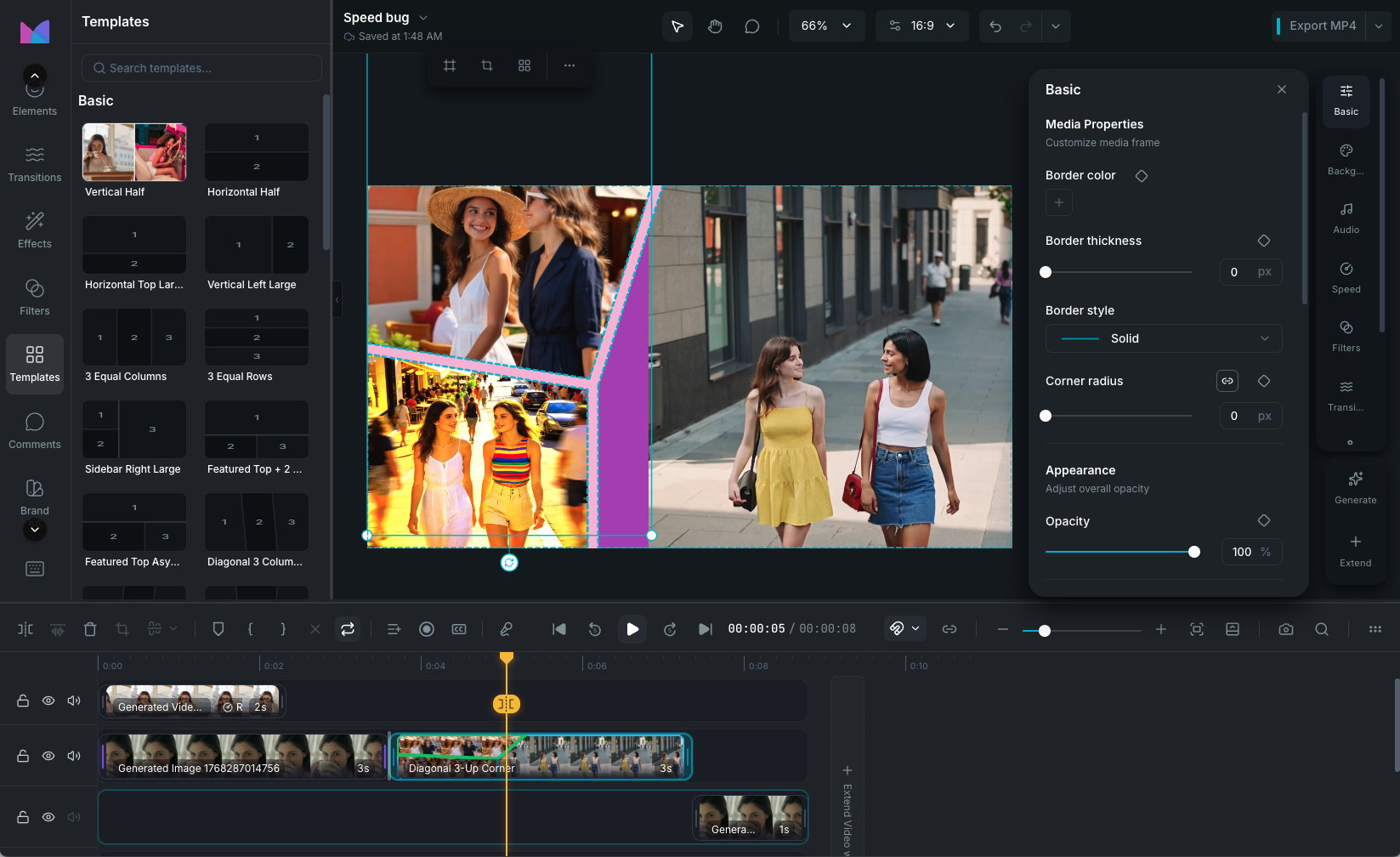
Split-screen templates divide the canvas into multiple panels (slots), each holding its own video or image. Use them to show multiple camera angles, comparisons, reaction videos, or any multi-panel composition.

Templates panel

Browsing templates

Open the Templates tab in the left sidebar to browse available layouts. Templates are displayed in a grid with preview thumbnails. Hover over a template to see an animated preview of the layout.

Recently used templates appear at the top for quick access.

Adding a template to the timeline

There are two ways to add a split-screen template:

  • Click a template to insert it at the playhead position.
  • Drag and drop a template from the sidebar onto the timeline to place it at a specific position and track.

A new split-screen clip is created on the timeline with the selected layout.

Available layouts

Templates are organized by number of slots:

2-slot layouts

Side-by-side, top-and-bottom, and diagonal splits. Includes balanced 50/50 layouts and asymmetric variants where one panel is larger.

3-slot layouts

Three equal columns or rows, sidebar layouts with one large panel and two smaller ones, and featured layouts with a prominent panel.

4-slot layouts

2x2 grids (equal and asymmetric), sidebar with three stacked panels, and featured layouts with one large panel and three smaller ones.

5 and 6-slot layouts

Cross patterns, asymmetric grids, and 3x2 or 2x3 grid arrangements.

Diagonal layouts

Angled dividers between panels for a more dynamic look. Available in 2, 3, and 4-slot configurations with left slant, right slant, and horizontal diagonal options.

Assigning media to slots

After inserting a template, drag video or image clips from the timeline or Library Panel into individual slots. Each slot can hold one media source. The media automatically fits within the slot's boundaries.

Customizing a template

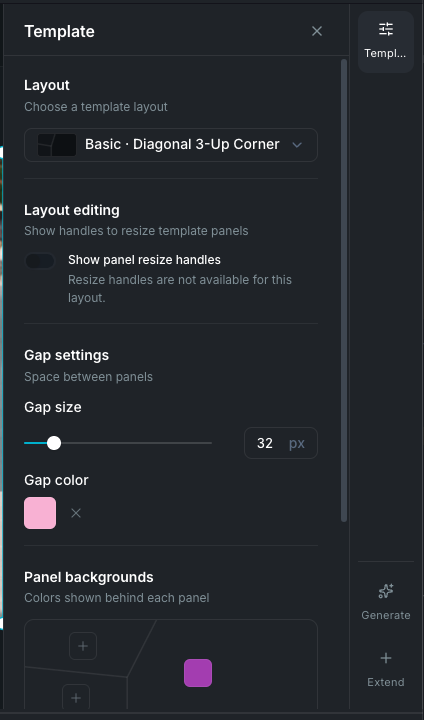
Select a split-screen clip on the timeline to open the Template Inspector in the properties panel.

Template inspector

Change layout

Use the layout dropdown in the inspector to switch to a different template. Media assignments are preserved when possible, so your content stays in place even when the layout changes.

Resize slots

Toggle Edit layout in the inspector to show resize handles on the canvas. Drag the handles to adjust individual slot sizes and shapes. The adjacent slots adjust to accommodate the change.

Gap size and color

Adjust the gap between slots using the size slider (0 to 200 pixels). Choose a gap color with the color picker to create visible dividers between panels, or set the gap to 0 for a seamless edge-to-edge look.

Slot background color

Set a background color for each slot individually. This color is visible when a slot is empty or when the assigned media doesn't fully cover the slot area.

Reset layout

Click Reset Layout to revert all geometry changes (slot sizes and positions) to the original template defaults. Media assignments and gap settings are preserved.

Clip name

Rename the split-screen clip from the inspector for easier identification on the timeline.

Wayaframe Documentation