Skip to content

Masking

Masking lets you control which parts of a clip or the entire canvas are visible. Wayaframe offers two types of masks, each suited to different workflows:

  • Clip mask: applies a shape directly to a single clip, hiding or revealing a portion of it.
  • Overlay mask: turns a shape on the timeline into a live mask that affects everything below it.

Clip mask

A clip mask applies a shape to an individual clip. The shape defines which part of the clip is visible. Only the masked clip is affected.

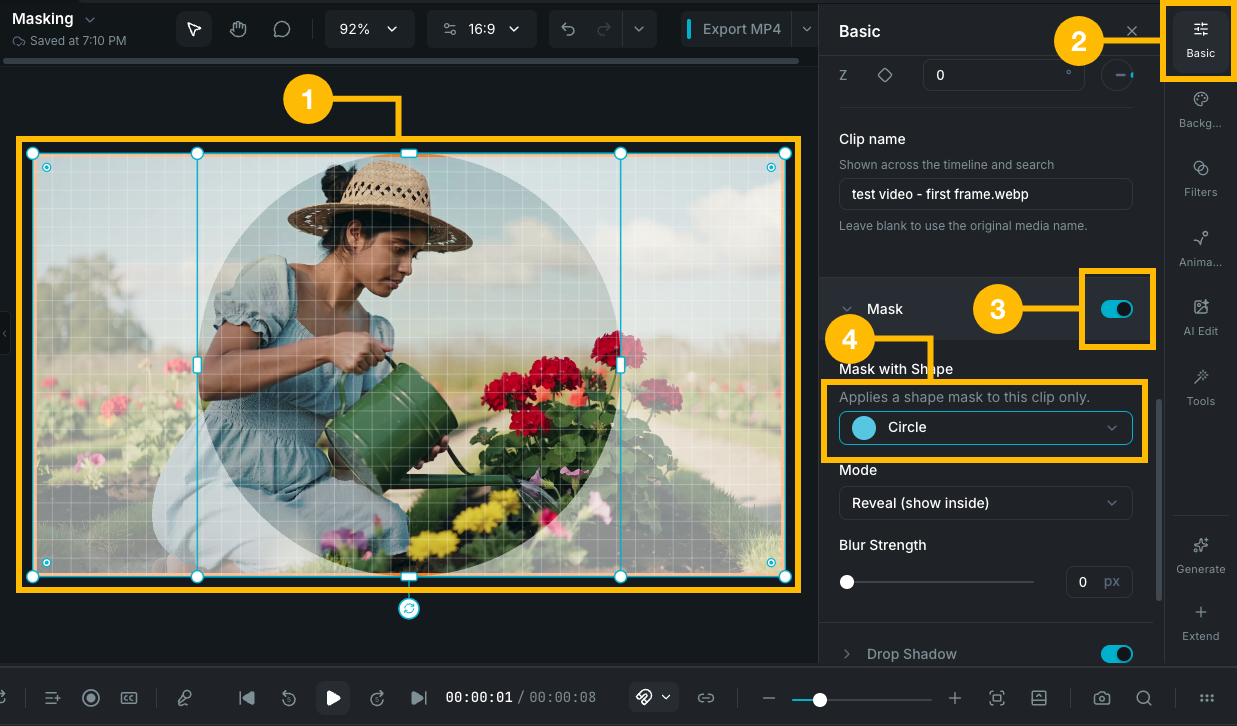
Clip mask example

Supported clip types

Clip masks work on:

  • Video clips
  • Image clips
  • Text clips
  • Sticker clips, including shape clips

On shape clips, clip masks and overlay masks are mutually exclusive. Enabling one disables the other.

Applying a clip mask from a preset

  1. Select a clip on the canvas or timeline.
  2. Open the Mask section in the Basic Properties panel.
  3. Enable the mask toggle.
  4. Choose a shape from the Mask with Shape dropdown. The available shapes include circles, rectangles, stars, and other closed shapes.

The mask is applied immediately and the clip is cropped to the chosen shape. Once applied, you can resize and reposition both the clip content and the mask shape independently on the canvas to frame exactly the area you want.

Applying a clip mask from a shape on the canvas

You can also use an existing shape clip as the mask source:

  1. Place a shape clip on the canvas and position it over the clip you want to mask.
  2. Select both the shape and the target clip (use +Click to multi-select).
  3. Right-click and select Create Mask.

The shape's geometry is applied as the mask and the shape clip is removed from the timeline. The canvas enters mask edit mode, showing a dimmed overlay with the mask cutout visible. You can resize and reposition both the clip content and the mask shape independently to adjust the framing.

When both selected clips are shapes, the one you selected last is treated as the cutter and the other becomes the masked target.

The source shape must be editable and cannot already have its own clip mask applied.

Mask settings

Once a clip mask is applied, configure it in the Mask section of the property panel:

  • Mode:
    • Reveal: only the area inside the shape is visible. Everything outside is hidden.
    • Hide: the area inside the shape is cut out. Everything outside remains visible.
  • Blur strength: feather the mask edges from 0 to 50px for a soft, gradual transition instead of a hard cutout.

Removing a clip mask

Toggle the mask off in the Mask section of the property panel, or right-click the clip and remove the mask. The original clip content is fully restored.

Overlay mask

An overlay mask uses a shape clip on the timeline to control what's visible across all content on tracks below it. Unlike a clip mask, which affects only one clip, an overlay mask affects everything beneath the shape in the layer stack.

How it works

When you enable an overlay mask on a shape, the shape remains visible on the canvas and simultaneously masks everything beneath it. Move, resize, or animate the shape and the mask effect updates in real time.

This is useful for creating viewport effects, spotlight reveals, animated wipes, and other compositions where you want a shape to dynamically control what the viewer sees.

Supported clip types

Overlay masks can only be enabled on shape clips. Any shape works: rectangles, circles, stars, arrows, custom paths, and more.

Enabling an overlay mask

  1. Select a shape clip on the canvas or timeline.
  2. Open the Overlay Mask section in the Basic Properties panel.
  3. Enable the toggle.

The shape immediately begins masking all content below it.

Overlay mask settings

  • Mode:
    • Reveal: only the area inside the shape is visible on lower layers.
    • Hide: the area inside the shape is cut out from lower layers.
  • Blur strength: feather the mask edges from 0 to 50px.

Editing the mask

Since the overlay mask is a live shape on the timeline, you can freely edit it:

  • Move and resize the shape on the canvas to reposition the mask.
  • Rotate the shape to angle the mask.
  • Edit shape properties like fill, stroke, and corner radius. The mask uses only the geometry, so visual styling does not affect the mask.
  • Animate the shape with keyframes to create moving mask effects over time. See Keyframing.

Removing an overlay mask

Toggle the overlay mask off in the property panel. The shape remains on the timeline as a regular shape clip.

Clip mask vs overlay mask

Clip maskOverlay mask
Applied toIndividual clip (video, image, text, sticker, shape)Shape clip (affects all layers below)
ScopeMasks a single clipMasks the entire composition below the shape
Shape visibilityShape is not visible, only its effectShape stays visible on the canvas
Shape editingNot editable after applyingFully editable (move, resize, animate)
Best forCropping a single clip to a shapeViewport effects, reveals, animated wipes

Wayaframe Documentation