Skip to content

Background Removal

Wayaframe offers two ways to remove backgrounds: AI background removal for images and chroma key for video and image clips.

Background Removal

AI background removal

AI background removal uses deep learning to intelligently separate the subject from the background in an image. It works with any background, not just solid colors, and does not require a green screen.

How to access

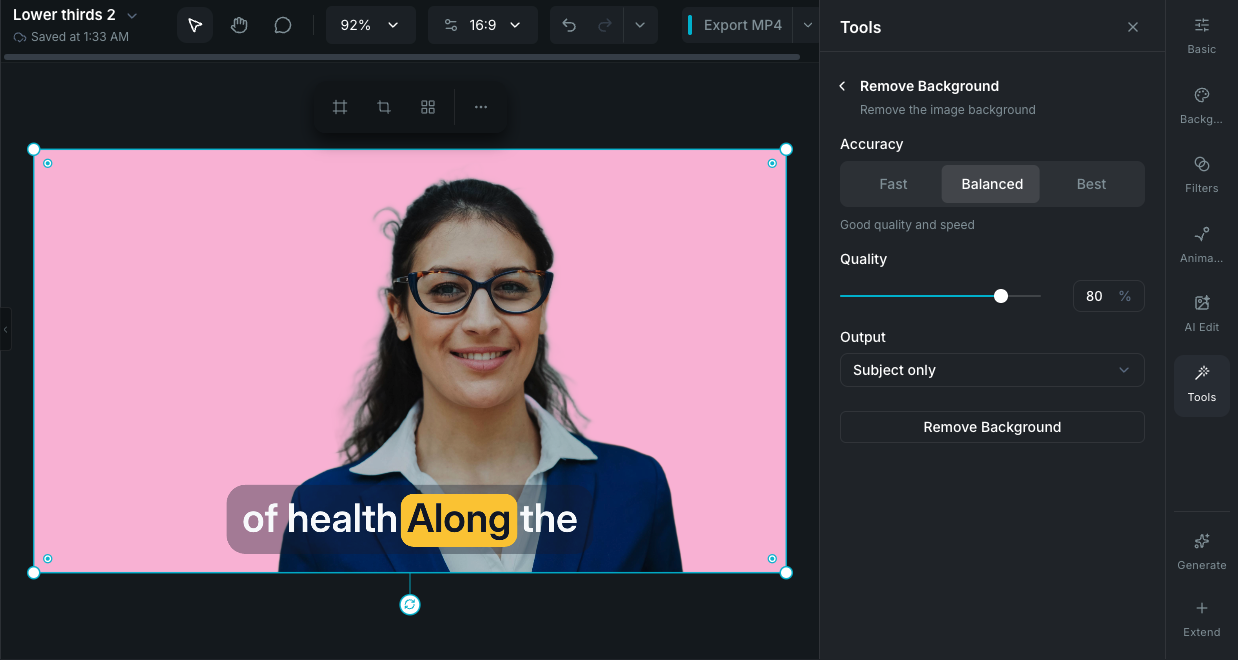
Select an image clip on the timeline, then open the Tools tab in the property panel and click Remove Background.

Settings

Accuracy

Choose how precise the AI model should be:

  • Fast: quickest processing, good for simple subjects with clear edges.
  • Balanced (default): a good tradeoff between quality and speed. Works well for most images.
  • Best: highest quality with the most accurate edge detection. Takes longer to process.

Quality

A slider (0 to 100%) controlling the output image quality. The default is 80%.

Output type

Choose what the result contains:

  • Subject only: removes the background, keeping only the subject on a transparent background. This is the most common option.
  • Background only: removes the subject, keeping only the background.
  • Mask: outputs a grayscale transparency mask showing which areas are opaque and which are transparent.

Processing

Click Remove Background to start. A progress indicator shows the processing status. Once complete, the processed image replaces the original on the timeline. The original is preserved in your undo history so you can revert if needed.

No credits required

AI background removal runs entirely on your device using a bundled AI model. It does not use credits and has no usage limits.

Chroma key / green screen

Wayaframe also includes a real-time chroma key effect for removing solid-color backgrounds from video and image clips. Unlike AI background removal, chroma key updates instantly as you adjust settings and works on video. See Green Screen for the full guide.

Wayaframe Documentation