Skip to content

Library

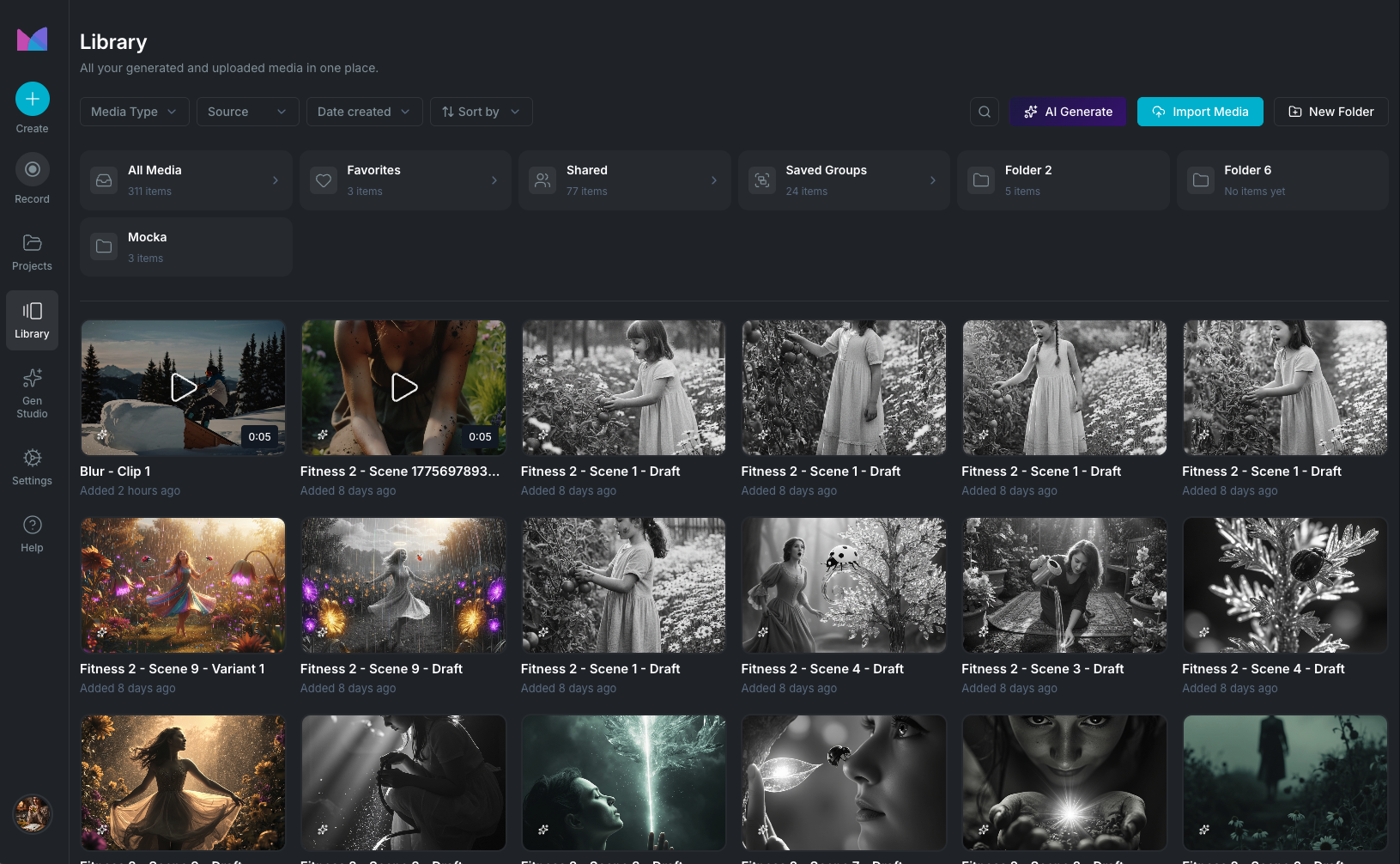
The Library is where all your media assets live: images, videos, audio files, GIFs, Lottie animations, AI generations, and saved timeline groups. Every asset you upload, import, or generate is stored here and can be used across any project.

Your full Library is also available inside the editor through the Library Panel and Media Panel, so you can browse and use your assets in projects without leaving the editor.

Library overview

Library header

The header at the top of the Library gives you quick access to creation, import, and organization tools.

AI Generate

Click AI Generate to open a menu with quick links to the Library's AI creation tools:

  • Script: generate a video script with AI. See Script Generation.
  • Voiceover: convert a script into voiceover audio. See Voice Designer.
  • Generate Image: create images from text prompts. See AI Gen Studio.
  • Generate Video Clip: create video clips from text prompts. See AI Gen Studio.
  • Image to Video: animate a static image into a video clip. See AI Gen Studio.
  • Stock Media: browse and import free stock assets without leaving the app. See Stock Media.

Each option opens its own workspace within the Library. AI-generated assets are saved to your Library automatically and can be reused across multiple projects.

Import Media

Click Import Media to open the upload modal. See Import Media for all import methods, supported formats, and file size limits.

New Folder

Click New Folder to create a custom folder for organizing your assets. This button is disabled when viewing a built-in collection like Favorites or Shared With Me. See Folders.

Browsing media

The Library displays your assets in a grid of media cards. Video and audio cards show a duration badge. Image cards show a thumbnail preview. Lottie files show an animated preview with a static poster fallback.

Use the filters in the header to narrow down what you see by media type, source, date, and more. See Search, sort, and filter for all available options.

Collections

In addition to your uploaded media, the Library includes these built-in collections:

All Media

The default view showing every asset in your Library regardless of type or folder.

Favorites

Assets you've marked for quick access. Toggle an asset's favorite status from its action menu or the media detail view.

Shared With Me

Assets shared from other users' projects. Shared media is read-only in terms of organization: you can view, download, rename, and favorite shared assets, but you cannot move them to folders or delete them.

Shared media can be viewed two ways using the Group By toggle:

  • By Project: groups shared assets under the project they came from, showing the project title and media count per group.
  • No Grouping: displays all shared assets in a flat list.

Saved Groups

Reusable collections of timeline elements (text, shapes, clips, effects) that you've saved from the editor. When you select a group of elements on the timeline and save it, the group is stored here as a single reusable asset with a thumbnail preview.

Saved groups show the number of clips they contain. You can drag a saved group from the Library onto a timeline to place all its elements at once, preserving their relative positions, timing, and properties.

From any saved group, you can:

  • Rename: change the group name.
  • Delete: remove the saved group from the Library.

Folders

Organize your media into custom folders:

  • Create: click New Folder in the Library header.
  • Rename: right-click a folder or open its menu and select Rename.
  • Delete: open the folder menu and select Delete. A confirmation is required.
  • Move media: select assets and use Move to Folder to organize them. You can also select a destination folder when uploading or importing.

Folders appear in the Library view alongside your built-in collections. Click a folder to view its contents, and use the breadcrumb navigation to move back to the parent level.

Search, sort, and filter

The Library header includes tools for narrowing down your media:

Search

Search by asset name or AI prompt text. Results update as you type.

Filters

  • Media type: Image, Video, or Audio.
  • Source: Upload, AI Generated, Rendered, Library, or URL Import.
  • Date created: Today, Yesterday, Last 30 Days, Last 90 Days, or Last Year.

Active filters show a count badge. Use Clear All to reset everything at once.

Sort

  • Newest Created (default)
  • Oldest Created
  • Name (A-Z)
  • Name (Z-A)

Adding assets to a project

To use Library assets in a project, open the Library Panel inside the editor. From there you can browse, search, and insert any asset directly onto the timeline without leaving the editor.

Wayaframe Documentation