Skip to content

Text Path

Text Path lets you flow text along a custom curve instead of a straight line. Each character is positioned and rotated to follow the path, creating arcs, waves, circles, and any shape you draw. You can also animate text to travel along the path over time.

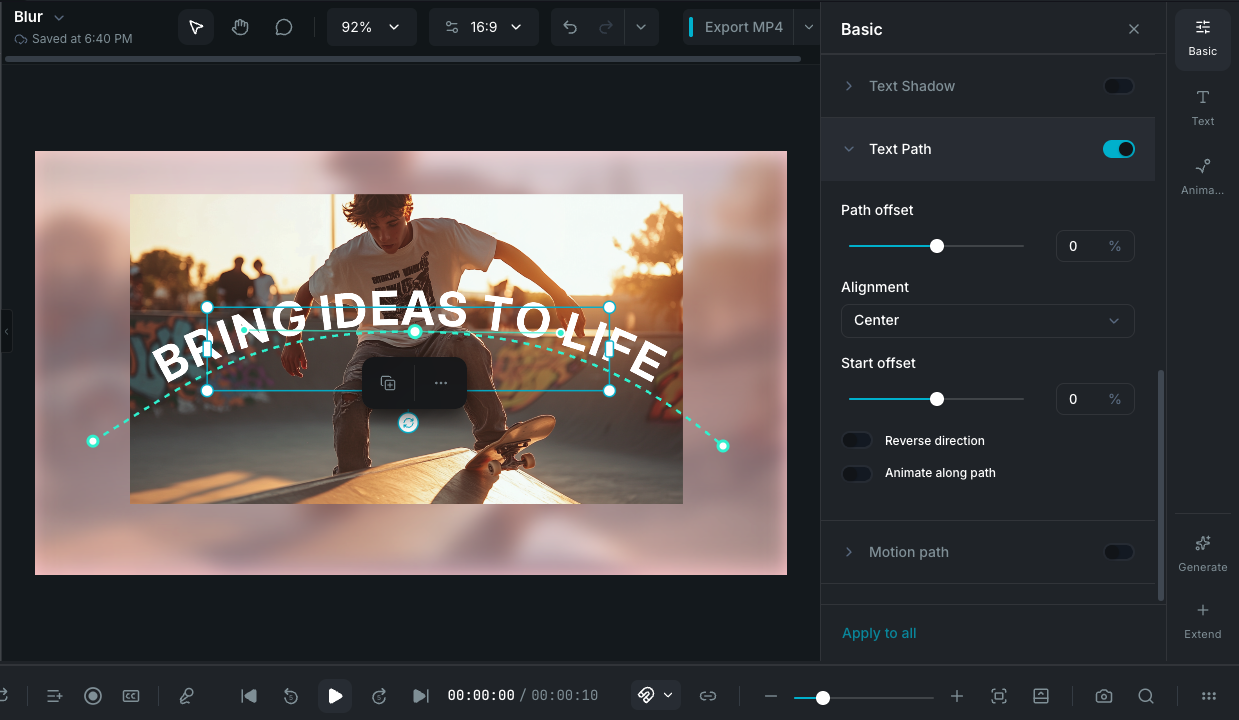
Text path on canvas

Enabling text path

Select a text clip, then open the Text Path section in the Basic Properties panel and toggle it on. A default arc-shaped path appears on the canvas, and your text flows along it immediately.

Text Path is available on regular text clips. It is not available on subtitle clips or clips with 3D rotation, skew, or perspective applied.

Editing the path on the canvas

When Text Path is enabled, the canvas shows the path as a dashed curve with interactive control points.

Control points

The white circles on the path are control points. Drag any control point to reshape the curve. The default path starts with 3 control points forming an arc.

  • Move a point: click and drag it to a new position.
  • Add a point: double-click anywhere on the path line to insert a new control point at that position.
  • Delete a point: select a point and press . A minimum of 2 points is required.
  • Toggle corner mode: double-click an existing point to switch between smooth curves and sharp corners.

Curve handles

When you select a control point, cyan handles extend from it. Drag these handles to control the curve shape between points.

  • By default, handles are linked: dragging one side mirrors the other to keep the curve smooth.
  • Hold while dragging a handle to break the link and adjust each side independently.

Path settings

Configure these properties in the Text Path section of the property panel:

Path offset

Shifts the text perpendicular to the path (above or below the curve). Range: -300 to +300. Default: 0.

Alignment

Controls where the text sits along the path:

  • Start: text begins at the start of the path.
  • Center (default): text is centered along the path.
  • End: text ends at the end of the path.

Start offset

Shifts where the first character begins along the path. Range: -200 to +200. Default: 0.

Reverse direction

Flips the text direction so it flows backwards along the path.

Animating text along the path

Toggle Animate along path to make the text travel the full length of the path over time.

Timing window

Choose which portion of the clip's duration the animation spans. By default, the animation plays across the entire clip. Drag the handles to start or end the animation at a specific point.

Direction

  • Forward: text travels from the start of the path to the end.
  • Reverse: text travels from the end to the start.

Loop

When enabled (default), the animation repeats continuously for the duration of the clip.

Cycle duration

Controls how long one complete traversal of the path takes, from 0.2 to 20 seconds. Only available when Loop is enabled. Lower values create faster movement.

Wayaframe Documentation