Skip to content

Image Generation

Wayaframe integrates with state-of-the-art image generation models including FLUX, Nano Banana, Ideogram, Seedream, Kling Image, Recraft, GPT Image, Midjourney, and more. Generate photorealistic visuals, illustrations, concept art, or vector graphics directly inside the app. Edit existing images with inpainting, style transfer, and instruction-based AI editing. Compare results side by side, iterate on prompts, and send images straight to video generation or the editor timeline.

Editor workflow

Inside the video editor, image generation is available through two panels.

Generate panel

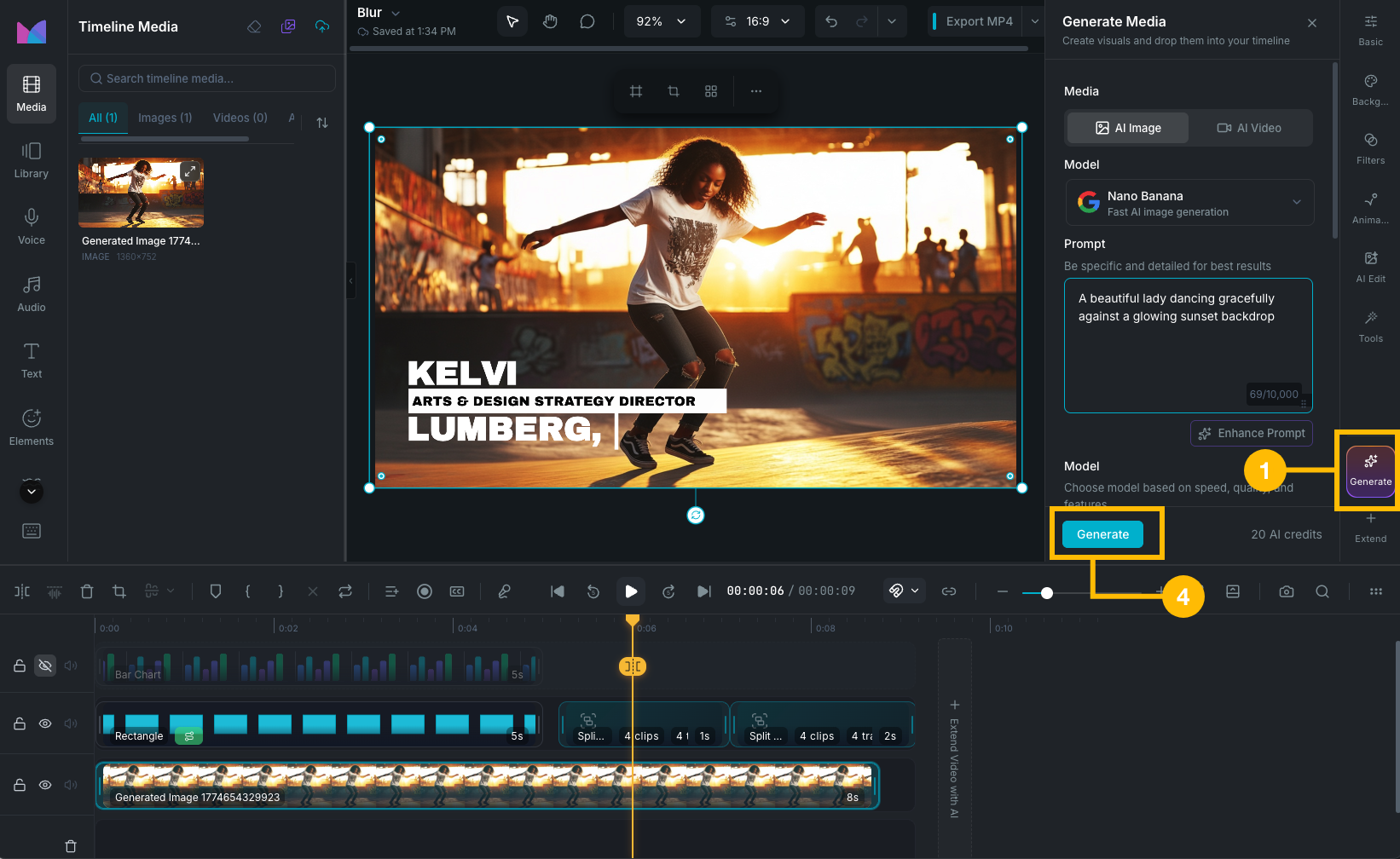
Generate fresh visuals from a text prompt and drop them straight into your timeline:

  1. Click the Generate button in the editor's right sidebar to open the panel.
  2. Choose an image model and enter a prompt.
  3. Adjust model-specific settings (aspect ratio, reference images, etc.). See available models for each model's controls.
  4. Click Generate. The results appear in the panel.
  5. The generated image is automatically inserted into the timeline at the playhead position.

If you have a visual clip selected on the timeline and the current model supports reference or input images, Wayaframe automatically uses it:

  • Image clip selected: the image is offered as a reference input automatically.
  • Video clip selected: you get the option to use the first frame, last frame, or the frame at the current playhead position as a reference.

Editor generate panel

Edit panel

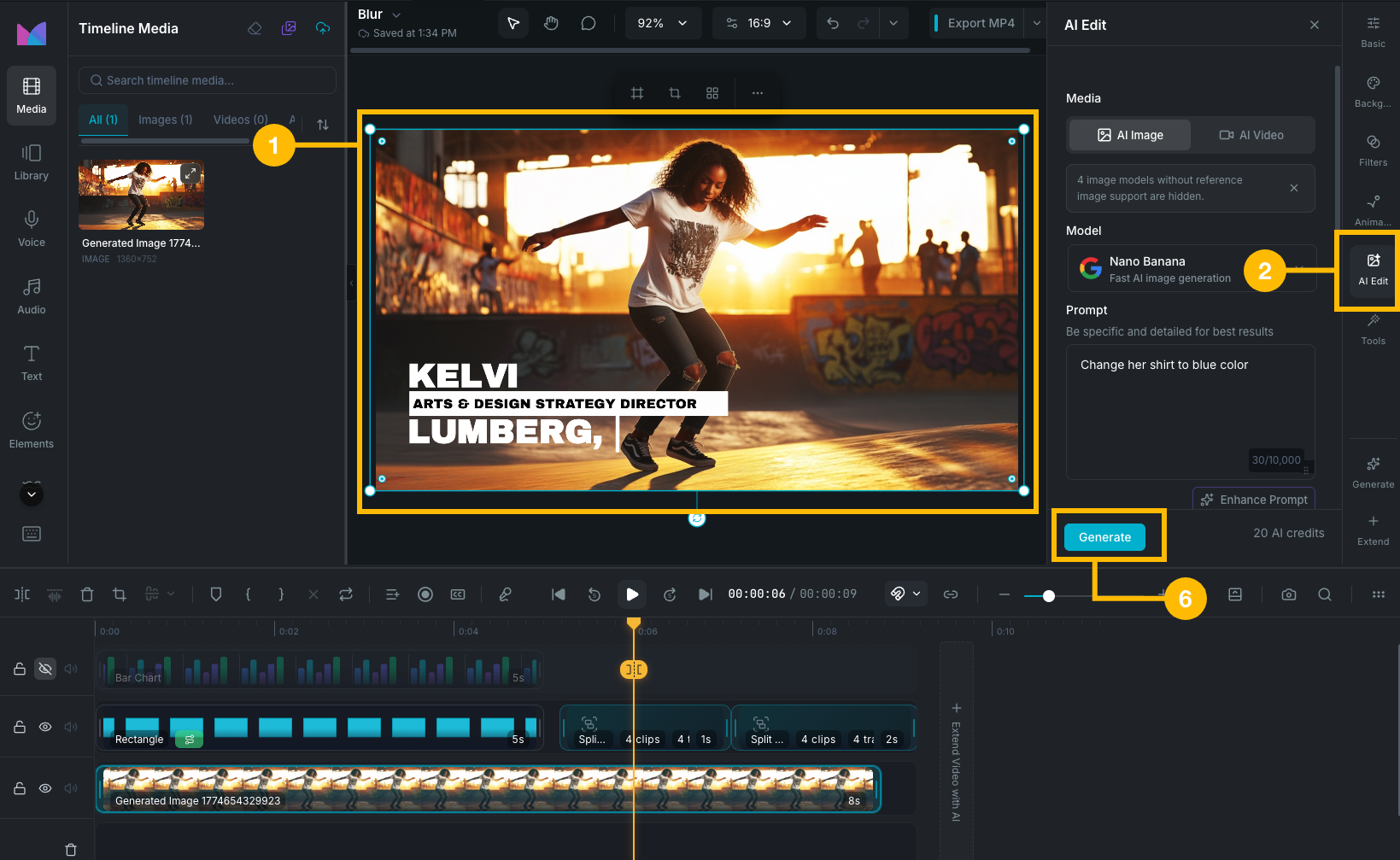
Already have a visual on the timeline that needs changes? Use the Edit panel to restyle, modify, or transform it with AI:

  1. Select a clip on the timeline or canvas.
  2. Open the Edit panel from the inspector.
  3. Choose an editing model (FLUX.2, SeedEdit, GPT Image, or others that support image input).
  4. The selected clip is automatically used as the input:
    • Image clip: the image is used directly as the editing source.
    • Video clip: you can choose the first frame, last frame, or the frame at the current playhead position as the editing source.
  5. Describe the changes you want in the prompt (e.g. "change the sky to sunset", "remove the background", "make it look like a watercolor painting").
  6. Click Generate. The edited image replaces the original clip on the timeline.

Editor edit panel

Available models

Wayaframe supports 16+ image generation models. Every generation starts with a text prompt. Each model expands below to show its full set of controls and capabilities.

All models share these universal parameters:

  • Prompt: describe the image you want (character limits vary by model). Use the Prompt Enhancer to improve your prompt before generating.
  • Aspect ratio: 10+ options including 1:1, 16:9, 9:16, 4:3, 3:4, 3:2, 2:3, and more. Wayaframe automatically selects the aspect ratio that matches your project, but you can pick a different one if needed.
  • Number of images: generate multiple images in a single batch.
FLUX.1 / FLUX.2 — Black Forest Labs

FLUX.2 adds inpainting and image editing on top of FLUX.1's text-to-image capabilities.

  • Prompt: up to 10,000 characters.
  • Variant: choose between Schnell, Dev, Pro, or Ultra for different speed and quality trade-offs.
  • Negative prompt: describe what to exclude.
  • Aspect ratio: standard ratio presets.
  • Number of images: generate multiple outputs at once.
  • Input mode (FLUX.2): switch between image editing and inpainting.
  • Seed image (FLUX.2): provide a base image for editing.
  • Mask image (FLUX.2): paint a mask to define which regions to regenerate (inpainting).
  • Reference images (FLUX.2): provide style or content references.
Nano Banana / Nano Banana Pro — Google Gemini

Standard and Pro variants with different capabilities.

Nano Banana:

  • Prompt, Model selection, Aspect ratio, Resolution, Input images, Number of images.
  • Thinking Level and Google Search Grounding (available on Gemini 3.1 Flash only).

Nano Banana Pro:

  • Prompt, Aspect ratio, Resolution, Reference images, Number of images.
  • Google Search Grounding.
Ideogram

Strong at typography, logos, and stylized compositions. Supports style and character reference images.

  • Prompt, Aspect ratio, Number of images.
  • Rendering Speed: trade speed for quality.
  • Style Type: fine-tune the rendering approach.
  • Style Preset: choose a visual style category (available for some style types).
  • Magic Prompt: let the model enhance your prompt automatically.
  • Style Reference Images: provide images to match the visual style.
  • Character Reference Images: provide images of a specific character to maintain consistency.
Seedream 4.0 / 4.5 — ByteDance

High-fidelity generation with reference image support.

  • Prompt, Model selection, Aspect ratio, Number of images.
  • Negative Prompt: describe what to exclude.
  • Reference Images: provide images to guide style and content.
SeedEdit 3.0 — ByteDance

Specialist model for instruction-following image edits. Upload an image and describe the changes you want.

  • Prompt, Number of images.
  • Reference Image: the image to edit.
Kling Image o1 / o3 / 3.0

Versatile model with high-resolution output on the o3 variant.

  • Prompt, Model selection, Aspect ratio, Number of images.
  • Negative Prompt: describe what to exclude.
  • Resolution: 1K, 2K, or 4K (available on o3 variant).
  • Reference Images: provide images to guide the generation.
Recraft v4 / v4 Pro

Design-focused model with color palette control. Includes a Vectorize mode for converting raster images to scalable SVG.

  • Prompt, Model selection, Aspect ratio.
  • Reference Images: provide images to guide the output.
  • Palette Color: define specific colors the output should use.
  • Background Color: set the canvas background.
Recraft Vectorize

Converts a raster image to scalable SVG vector format. No prompt required.

  • Reference Image: the raster image to convert to SVG.
GPT Image 1 / 1.5 — OpenAI

Supports transparent backgrounds and instruction-based image editing.

  • Prompt, Model selection, Aspect ratio, Number of images.
  • Quality: auto, low, medium, or high.
  • Input Images: provide images for editing or transformation.
  • Transparent Background: toggle to isolate the subject with no background.
Google Imagen

Google's image generation model with strong photorealism.

  • Prompt, Aspect ratio, Number of images.
  • Mode: choose the generation mode.
Minimax Image

General-purpose image generation with reference and prompt optimization support.

  • Prompt, Aspect ratio, Number of images.
  • Subject Reference: provide an image to guide the subject.
  • Prompt Optimizer: let the model enhance your prompt before generating.
Qwen Image — Alibaba

Supports batch generation with negative prompt control.

  • Prompt, Aspect ratio, Number of images (up to 20).
  • Negative Prompt: describe what to exclude.
Grok Standard / Pro — xAI

Supports both text-to-image and image-to-image transformation.

  • Prompt, Model selection (Standard or Pro), Aspect ratio, Number of images.
  • Reference Images: provide a base image for image-to-image transformation.
DALL-E 3 — OpenAI

Classic OpenAI image generation with style and quality controls.

  • Prompt, Aspect ratio, Number of images.
  • Quality: Standard or HD.
  • Style: Vivid or Natural.
Midjourney v6 / v6.1 / v7

Known for highly stylized, artistic output with advanced creative controls.

  • Prompt, Model selection (v6, v6.1, v7), Aspect ratio, Number of images.
  • Quality: controls detail level.
  • Stylize: how much Midjourney's aesthetic is applied.
  • Chaos: adds variation between generated images.
  • Weird: introduces unconventional, experimental elements.
  • Niji: switch to anime-focused generation.
  • Reference Image: provide an image for style guidance.

Image editing and references

Many models accept images as input to guide, edit, or transform the output. The label and behavior depends on the model:

  • FLUX.2: switch Input Mode to Image Editing (provide a Source Image and describe changes) or Inpainting (provide a Source Image and paint a Mask Image to define which region to regenerate). Also accepts Reference Images for style guidance.
  • SeedEdit: provide a Reference Image (required) and describe the edits you want in the prompt.
  • GPT Image: provide Input Images (up to 3) for editing or transformation. Toggle Transparent Background to remove the background.
  • Midjourney: provide an optional Reference Image to guide style and composition.
  • Grok: provide Reference Images (up to 3 on Standard, 1 on Pro) for image-to-image transformation.
  • Ideogram: provide Style Reference Images and/or Character Reference Images (up to 3 each) to guide the visual style or maintain character consistency.
  • Recraft: provide Reference Images plus Palette Color and Background Color controls.
  • Recraft Vectorize: provide a Reference Image (required) to convert from raster to SVG.
  • Seedream: provide Reference Images to guide style and content.
  • Kling: provide Reference Images to guide the generation.
  • Minimax: provide a Subject Reference image to guide the subject.
  • Nano Banana: provide Input Images as context. Nano Banana Pro accepts Reference Images.

How to supply images

When a model accepts reference, input, or source images, you can provide them in several ways:

  • Upload: drag and drop a file or click to browse from your computer.
  • Scene reference (editor only): use a frame from the current or previous scene in your project. For video clips, you can choose the first frame, playhead frame, or last frame.
  • Timeline selection (editor only): if you have a visual clip selected on the timeline and the model supports image input, it's automatically offered as a reference.

The number of images accepted varies by model (1 for Midjourney and SeedEdit, up to 3 for GPT Image and Grok, up to 14 for Seedream). See each model's accordion above for the exact field name and limit.

During and after generation

When you start a generation, the job is added to the Generation Activity dropdown where you can monitor progress, view status, and track all active jobs.

Once the generation completes:

  • Generate panel (editor): the result is inserted as a new clip on your timeline.
  • Edit panel (editor): the result replaces the selected clip on your timeline.

All generated images are saved to your Library automatically and can be reused across any project.

Image to video

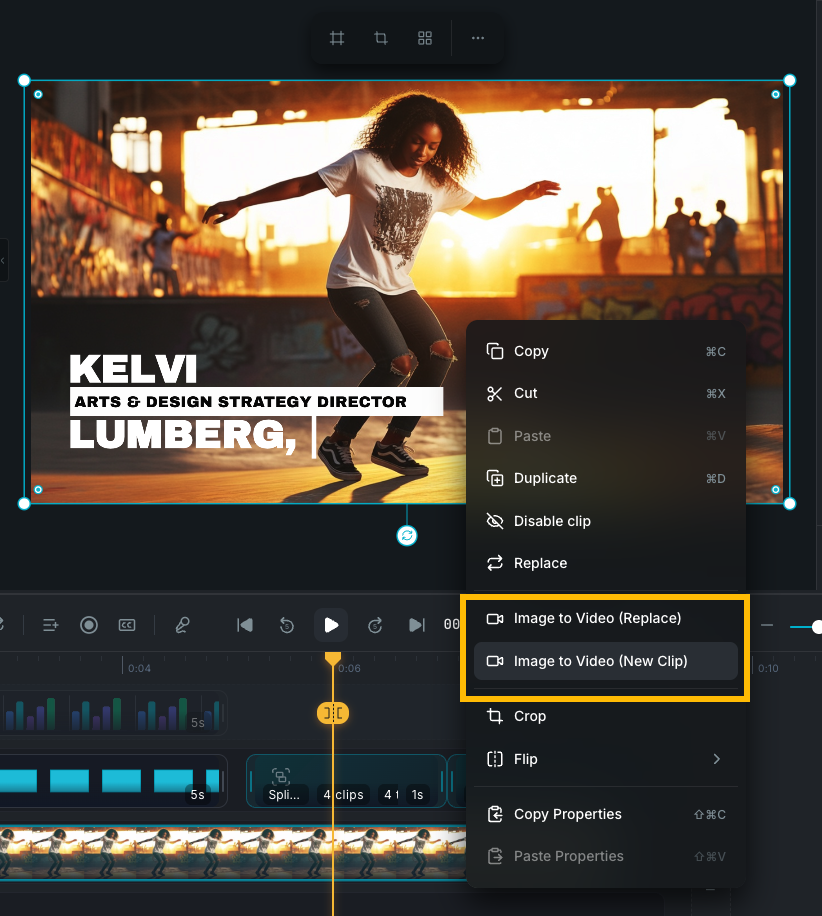
You can turn any image clip into a video directly from the editor. Right-click an image clip on the timeline and select Image to Video or Image to Video (Replace) from the context menu. A modal opens where you choose a video model. The default is Kling.

Supported video models: Kling, Seedance, Minimax, Luma Labs, Runway, Grok, PixVerse, Sora, Veo, Vidu, and Wan. Only models that support image-to-video input are shown.

Image to video context menu

See Video Generation for more on video creation.

Credits

Image generation consumes AI credits. The cost varies by model, resolution, and number of images. A real-time credit estimate is shown next to the generate button before you confirm, so you always know the cost before generating.

Model recommendations

Every model has its own strengths, and the best way to find your favorite is to experiment. That said, here are some general starting points:

  • Google Imagen and Nano Banana: strong choices for photorealistic, production-quality output.
  • Minimax: fast and cost-effective, making it a good option for quick drafts, tests, and iteration before committing credits to a higher-end model.
  • Ideogram: particularly strong at rendering text, typography, and logo-style compositions.
  • FLUX.2: versatile for both generation and editing (inpainting, image editing) in a single model.
  • Recraft: ideal when you need precise color control or want to produce scalable SVG vector output.
  • Midjourney: known for highly stylized, artistic results with fine-grained creative controls.
  • GPT Image: useful when you need transparent backgrounds or instruction-based edits on existing images.

These are general guidelines, not rules. Different prompts and styles respond differently to each model, so try a few and use comparison mode to evaluate results before deciding.

Project workflow

In the guided project creation flow, the Scene Director step uses image generation to create visuals for each scene. Images are generated based on your script and scene structure, and attach directly to the project timeline.

Library workflow

You can also generate images from the Library as standalone reusable assets, separate from any project. The Library uses the AI Gen Studio workspace, which provides the full generation experience including model selection, comparison mode, and generation history. Generated images are saved to your library and can be used across multiple projects.

Wayaframe Documentation