Skip to content

Video Generation

Wayaframe integrates with 11 AI video generation models including Kling, Seedance, Veo, Runway, Sora, Wan, and more. Generate motion content from text prompts, animate still images, extend existing clips, or transform video-to-video. Several models produce native audio alongside the visuals.

Editor workflow

Inside the video editor, video generation is available through two panels.

Generate panel

Generate fresh video clips from a text prompt or image and drop them straight into your timeline:

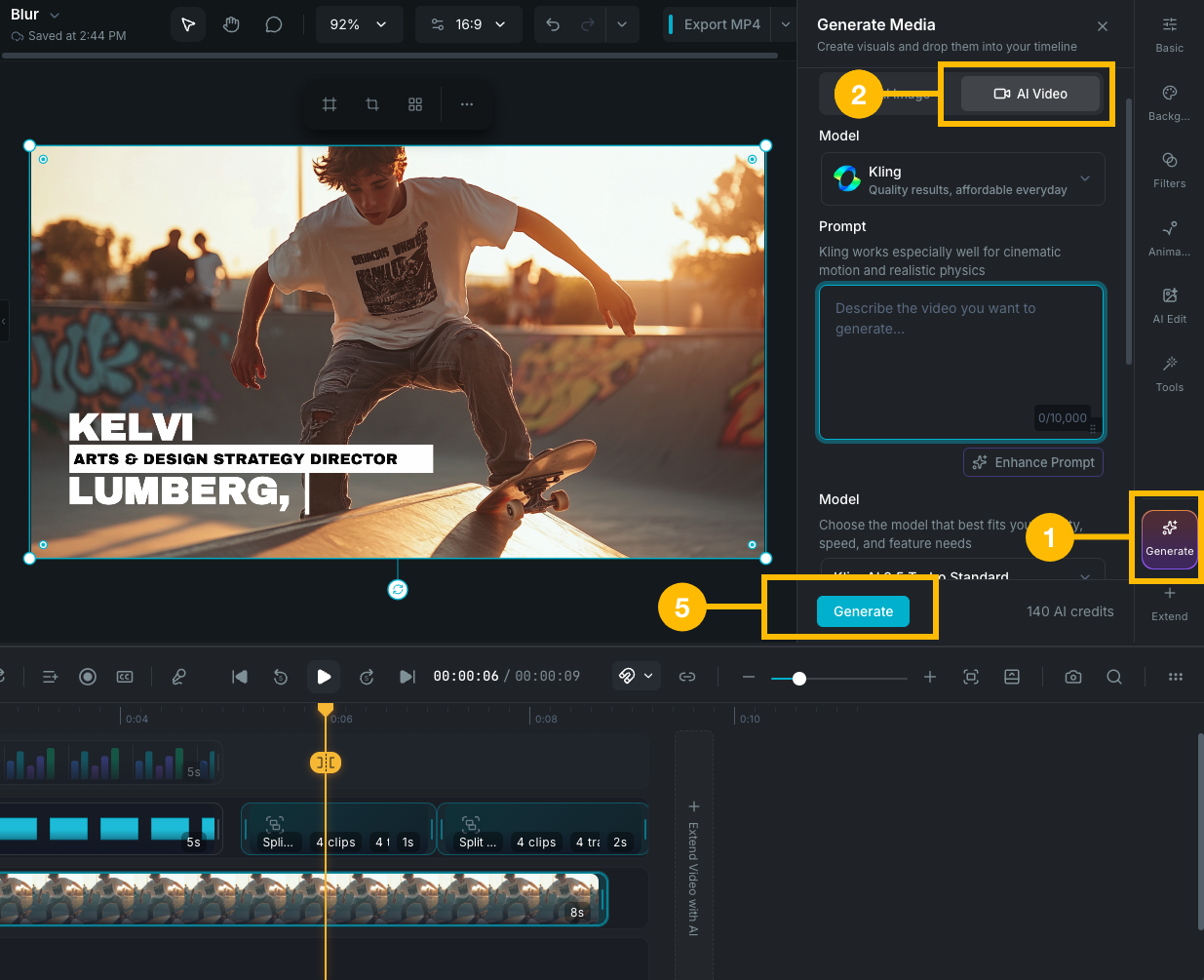
  1. Click the Generate button in the editor's right sidebar to open the panel.
  2. Switch to Video mode and choose a video model.
  3. Enter a prompt and adjust model-specific settings (duration, resolution, aspect ratio, etc.). See available models for each model's controls.
  4. Optionally provide an input image as the starting frame.
  5. Click Generate. The generated video clip is automatically inserted into the timeline.

If you have a visual clip selected on the timeline and the current model supports image or video input, it's automatically offered as a reference:

  • Image clip selected: the image is offered as an input frame automatically.
  • Video clip selected: you get the option to use the first frame, last frame, or the frame at the current playhead position.

Video generate panel

Edit panel

Already have a clip on the timeline that needs changes? Use the Edit panel to transform it with AI:

  1. Select a clip on the timeline or canvas.
  2. Open the Edit panel from the inspector.
  3. Switch to Video mode and choose a video model that supports image or video input.
  4. The selected clip is automatically used as the source.
  5. Describe the changes or style you want in the prompt.
  6. Click Generate. The result replaces the selected clip on your timeline.

You can also right-click any image clip on the timeline and select Image to Video or Image to Video (Replace) to generate motion from a still frame. See Image Generation: Image to video for details.

Available models

Wayaframe supports 11 video generation models. Each model expands below to show its full set of controls and capabilities.

All models support text-to-video and image-to-video generation. Controls shared across most models include Prompt, Aspect ratio, and Duration.

Kling — Kling AI

Versatile model with multiple variants and long-duration support up to 15 seconds.

  • Prompt, Model selection, Aspect ratio.
  • Input Mode: text-to-video or image-to-video.
  • Duration: 5, 10, or 15 seconds.
  • Input Image: provide a starting frame for image-to-video.
  • Last Frame: provide an ending frame.
  • Enable Audio: generate native audio alongside the video (supported on 3.0 and o3 variants).
Seedance — ByteDance

Multiple variants from fast drafts (Lite) to high-quality production (1.5 Pro) with audio and resolution controls.

  • Prompt, Model selection (Lite, Pro, Pro Fast, 1.5 Pro), Aspect ratio.
  • Input Mode: text-to-video or image-to-video.
  • Duration: 5 to 10 seconds (Lite/Pro), 4 to 12 seconds (1.5 Pro).
  • Resolution (1.5 Pro only): 480p, 720p, or 1080p.
  • Output Quality: 20 to 99 slider.
  • Audio (1.5 Pro only): generate native audio.
  • Camera Fixed: lock camera movement.
  • Input Image, Last Frame, Seed.
Veo — Google

Google's video model with resolution options and the only model that supports video extension.

  • Prompt, Model selection (Veo 3.1, Veo 2.0), Aspect ratio (16:9, 9:16).
  • Input Mode: text-to-video, image-to-video, or video extension.
  • Duration: 4 to 10 seconds.
  • Resolution (Veo 3.1): 480p, 720p, or 1080p.
  • Input Reference: provide an image for image-to-video.
  • Video Input (extension mode): continue from an existing video clip (up to 20 extensions).
  • Person Generation: control whether people appear in the output.
Runway

Supports video-to-video transformation alongside standard text and image inputs.

  • Prompt, Model selection (Gen-4.5, Gen-4 Aleph), Aspect ratio (16:9, 9:16).
  • Input Mode: text-to-video, image-to-video, or video-to-video.
  • Duration: 4 or 8 seconds.
  • Input Image: provide a starting frame.
  • Input Video (video-to-video): transform an existing video clip.
  • Watermark: toggle watermark on output.
Sora — OpenAI

OpenAI's video model with quality and seed controls.

  • Prompt, Model selection (Sora 2, Sora 2 Pro), Aspect ratio (16:9, 9:16).
  • Input Mode: text-to-video or image-to-video.
  • Duration: 4, 8, or 12 seconds.
  • Quality: Standard or High.
  • Input Reference: provide an image (auto-rescaled to model resolution).
  • Seed: set a fixed seed for reproducible results.
Grok — xAI

Supports video-to-video and native audio generation.

  • Prompt, Aspect ratio.
  • Input Mode: text-to-video, image-to-video, or video-to-video.
  • Duration: 6 seconds.
  • Resolution: 720p.
  • Input Image: provide a starting frame.
  • Input Video (video-to-video): upload an existing video (max 8.7 seconds, MP4).
  • Native audio is generated automatically.
Wan

Multiple versions with multi-shot support and native audio on the latest variant.

  • Prompt, Model selection (Wan 2.2, 2.5, 2.6), Aspect ratio.
  • Input Mode: text-to-video or image-to-video.
  • Duration: 5 to 10 seconds (base), 4 to 12 seconds (Wan 2.6).
  • Output Quality: 20 to 99 slider.
  • Steps (Wan 2.2): 10 to 50 diffusion steps.
  • Acceleration: High, Medium, or Low.
  • Multi-Shot (Wan 2.6): generate multi-scene video in a single clip.
  • Enable Audio (Wan 2.6): generate native audio.
  • Input Image, Last Frame, Seed.
Minimax

Supports first-frame, last-frame, and subject reference inputs.

  • Prompt, Model selection (MiniMax Hailuo 2.3).
  • Duration: 6 seconds.
  • First Frame Image: provide a starting frame.
  • Last Frame Image: provide an ending frame.
  • Subject Reference: provide a character or subject image for consistency.
  • Prompt Optimizer: let the model enhance your prompt.
Luma Labs

Fast generation with start and end frame control plus loop support.

  • Prompt, Model selection (Ray Flash 2), Aspect ratio.
  • Input Mode: text-to-video or image-to-video.
  • Duration: 5 seconds.
  • Resolution: 1080p.
  • Start Frame: provide a starting frame.
  • End Frame: provide an ending frame.
  • Loop: generate a seamlessly looping clip.
PixVerse

Stylized video generation with sound effects and motion control.

  • Prompt, Model selection (PixVerse v5.5), Aspect ratio.
  • Input Mode: text-to-video or image-to-video.
  • Duration: 5 seconds.
  • Sound Effects: add audio effects to the output.
  • Motion Mode: control the intensity of motion.
  • Input Image.
Vidu

Compact model with native audio enabled by default.

  • Prompt, Model selection (ViduQ3 Pro), Aspect ratio.
  • Input Mode: text-to-video or image-to-video.
  • Duration: 5 seconds.
  • Resolution: 720p.
  • Audio: native audio generated by default.
  • Input Image.

Generation modes

Text to video

All 11 models support generating video from a text prompt. Enter a description of the scene you want, choose a model, adjust settings, and generate.

Image to video

All 11 models support generating video from a still image. Provide an input image (first frame, last frame, or both depending on the model) and a text prompt describing the desired motion. The model animates the image based on your instructions.

Video to video

Transform an existing video clip into a new style or composition. Upload a source video and describe the changes you want. Supported by Runway (Gen-4.5, Gen-4 Aleph) and Grok.

Video extension

Continue an existing generated video with additional frames. Only Veo (3.1) supports video extension, allowing up to 20 sequential extensions on a single clip.

Multi-shot

Generate a multi-scene video in a single clip, where the model handles scene transitions automatically. Supported by Wan 2.6 only.

How to supply images and video

When a model accepts input images or video, you can provide them in several ways:

  • Upload: drag and drop a file or click to browse from your computer.
  • Scene reference (editor only): use a frame from the current or previous scene in your project.
  • Timeline selection (editor only): if you have a visual clip selected, it's automatically offered as input. For video clips, you can choose the first frame, playhead frame, or last frame.

Different models accept different inputs. The label in the model form tells you what's expected:

  • Input Image / Start Frame: the opening frame the model animates from.
  • Last Frame / End Frame: the closing frame the model animates toward. The generated video transitions between the start and end frames.
  • First Frame Image + Last Frame Image (Minimax): provide both to control the start and end of the clip.
  • Subject Reference (Minimax): provide a character or subject image for consistency across generations.
  • Input Video (Runway, Grok): provide an existing video clip for video-to-video transformation.
  • Input Reference (Sora, Veo): provide an image or reference that guides the generation.

See each model's accordion above for the exact fields and limits.

Native audio

Some models generate audio alongside the visuals, so the output includes sound without needing a separate voiceover or soundtrack step:

  • Kling (3.0 and o3 variants): toggle Enable Audio.
  • Seedance (1.5 Pro): toggle Audio.
  • Veo: audio generated automatically.
  • Grok: audio generated automatically.
  • Vidu: audio generated by default.
  • Wan (2.6): toggle Enable Audio.

During and after generation

When you start a generation, the job is added to the Generation Activity dropdown where you can monitor progress. Video generation typically takes longer than image generation.

Once complete:

  • Generate panel (editor): the video clip is inserted into your timeline.
  • Edit panel (editor): the result replaces the selected clip.
  • AI Gen Studio (library): the result appears in the workspace canvas and generation history.

All generated videos are saved to your Library and can be reused across projects.

Credits

Video generation consumes AI credits. The cost varies by model, duration, and resolution. A real-time credit estimate is shown next to the generate button before you confirm.

Model recommendations

Every model produces different results. Experiment to find what works best for your content. Some general starting points:

  • Kling: reliable all-rounder with long-duration support (up to 15s) and native audio.
  • Seedance 1.5 Pro: high-quality output with 1080p resolution, audio, and fine-grained quality controls.
  • Runway: strong for video-to-video transformation and style transfer.
  • Minimax: cost-effective for quick drafts and tests.
  • Wan 2.6: unique multi-shot capability for multi-scene videos with audio.
  • Luma Labs: fast generation with loop support for seamless animations.
  • Veo 3.1: the only model supporting video extension, useful for building longer sequences. Extension is only available at 720p. Veo is significantly more expensive per generation than other models, so consider using it selectively for high-value output.

Use comparison mode to evaluate results from different models before deciding.

Project workflow

In the guided project creation flow, the Scene Director step uses video generation to create motion visuals for each scene. Videos are generated based on your script and scene structure, and attach directly to the project timeline.

Library workflow

You can also generate videos from the Library as standalone reusable assets, separate from any project. The Library uses the AI Gen Studio workspace, which provides the full generation experience including model selection, comparison mode, and generation history.

Wayaframe Documentation