Skip to content

Import Documents

Wayaframe can turn a PDF or presentation file into a video project. Each page or slide becomes an image clip on the timeline, ready for you to add voiceover, transitions, and other edits.

Supported file types

  • PDF
  • PPT
  • PPTX

Looking to import spreadsheet data like Excel, CSV, or TSV? See Charts and Data for animated data visualizations.

How it works

When you create a project using From File, Wayaframe extracts each page or slide as an image and imports them as individual clips on the timeline.

Each page or slide is converted to an image at the quality level you choose. Text is not extracted from the document. Larger files or higher quality settings may take longer to process. The maximum file size for documents is 300 MB.

For importing other media formats like images, video, and audio, see Import Media.

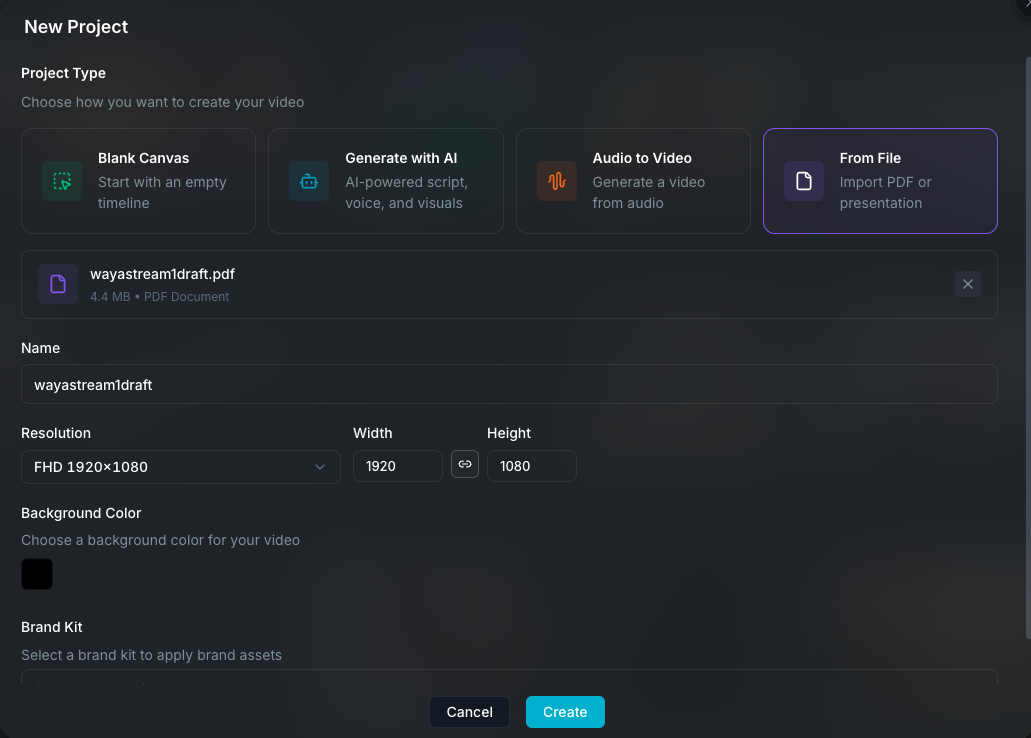
the From File option in the create project modal

Step 1: Create a project from a file

  1. Open Projects and click New Project.
  2. Select From File as the project type.
  3. Choose your PDF, PPT, or PPTX file.
  4. Set a project name, resolution, and background color.
  5. Click Create. Wayaframe opens the editor and shows the document import modal automatically.

Step 2: Configure the import

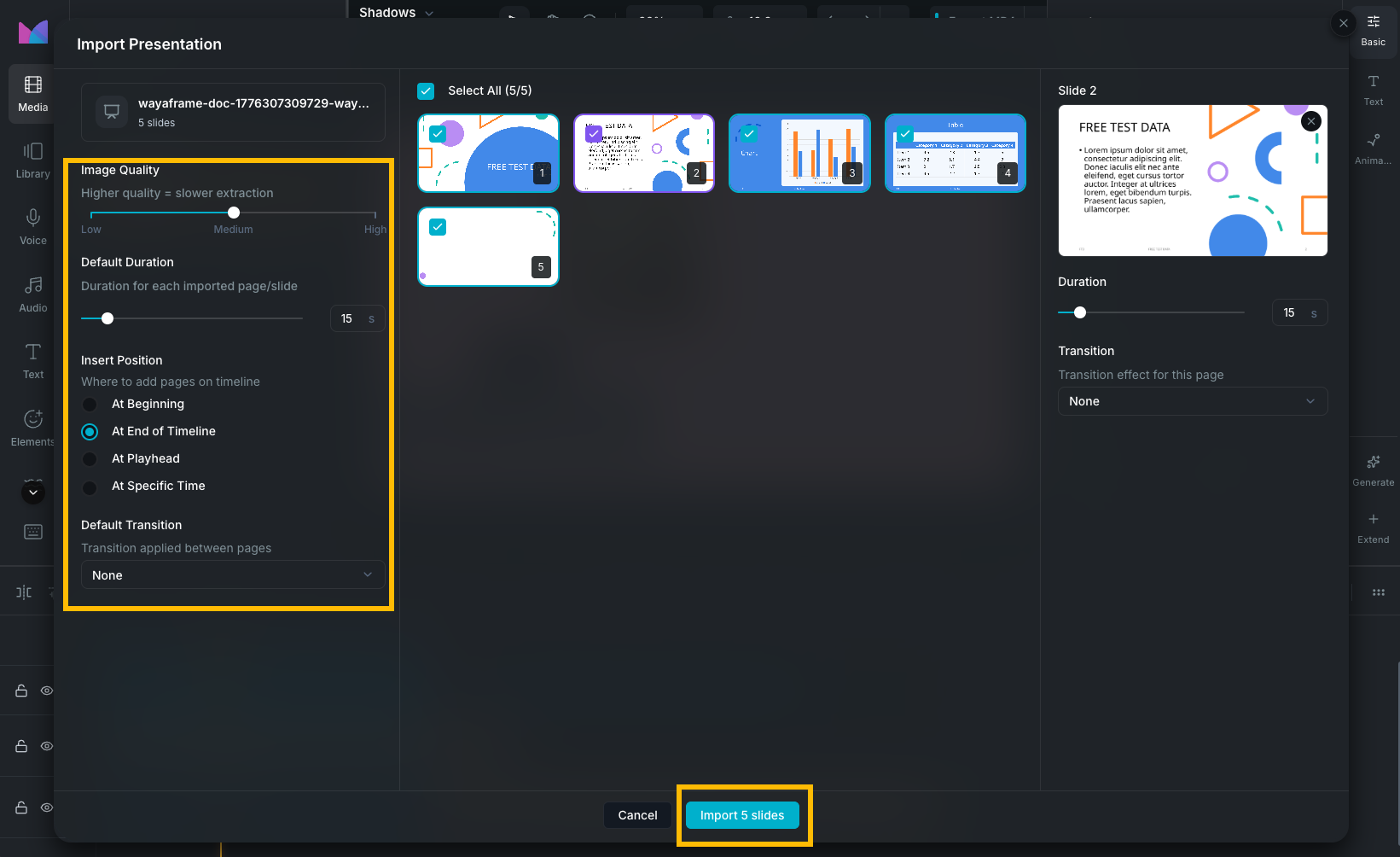
The document import modal lets you control how pages are brought into the timeline:

  • Page selection: choose which pages to import or import all of them.
  • Image quality: pick Low (800px), Medium (1200px), or High (1600px) resolution for the extracted images.
  • Page background (PDF only): toggle whether to include the page background or render with transparency.
  • Clip duration: set how long each page stays on screen. The default is 15 seconds, adjustable between 1 and 120 seconds. You can also select individual pages and set a different duration for each one, or adjust timing later in the timeline after the clips are inserted.
  • Transitions: optionally add a transition between every page at once. You can also select specific pages to apply transitions individually, or adjust them later in the editor after insertion.
  • Insert position: choose where the imported clips are placed on the timeline. Options are: at the very beginning, at the end, at the current playhead position, or at a specific time you enter manually.

the document import modal settings

Step 3: Edit in the timeline

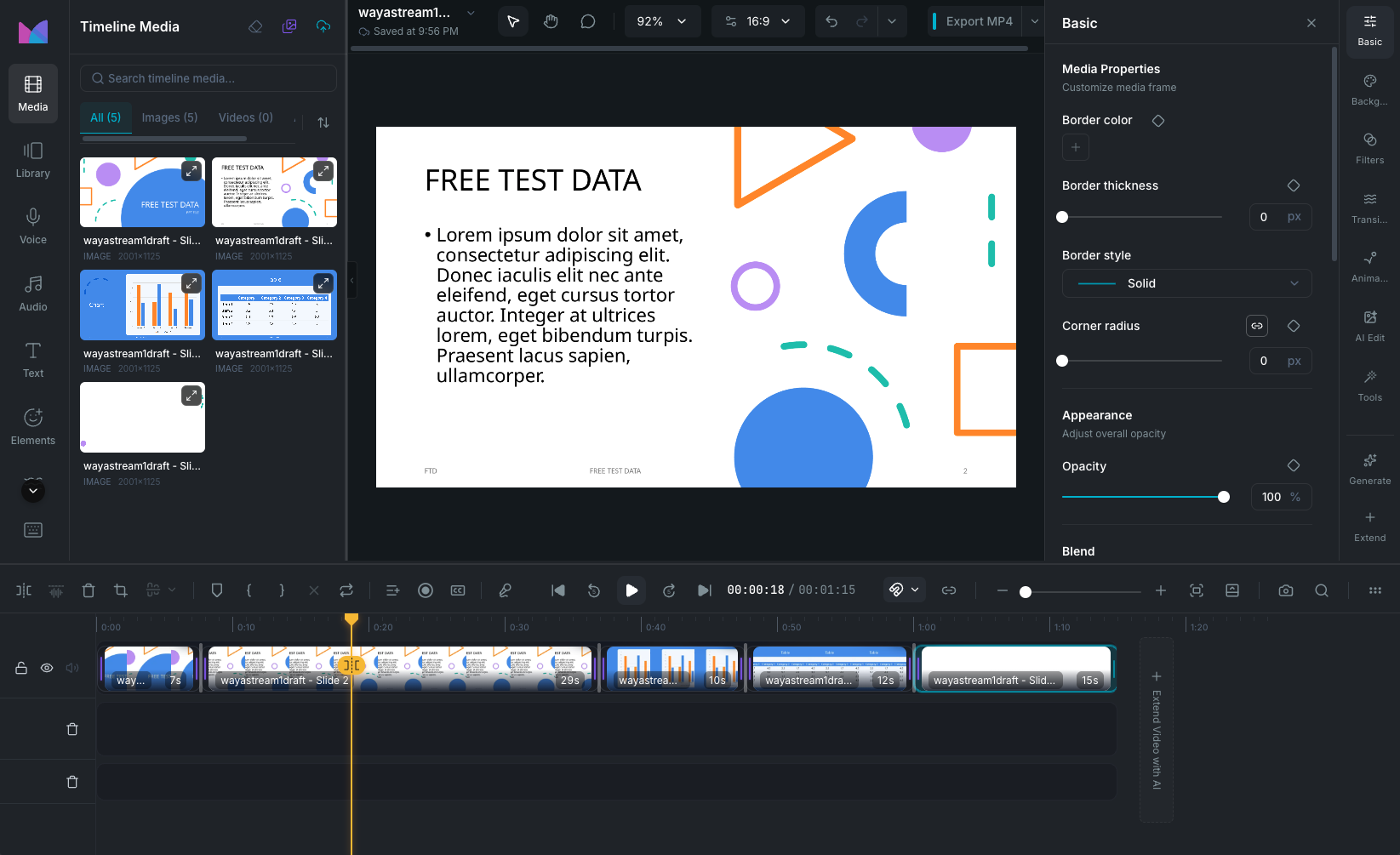
After import, each page appears as a clip on the timeline. The imported slide images are only visible in the media panel inside the editor, not in your main library.

From here you can:

the timeline after document import

Import from inside the editor

If you are already editing a project, you don't need to create a new one. Open the editor header menu and select Import PDF/PPTX. The imported pages are added as clips to your current project's timeline.

Drag and drop shortcut

You can also skip the create-project modal by dragging a PDF, PPT, or PPTX file directly onto the Projects view. Wayaframe creates a new project and opens the import modal automatically.

The same works inside the editor. Drag a document file onto the canvas or timeline and Wayaframe opens the import modal to add the pages to your current project.

Wayaframe Documentation