Skip to content

Media Panel

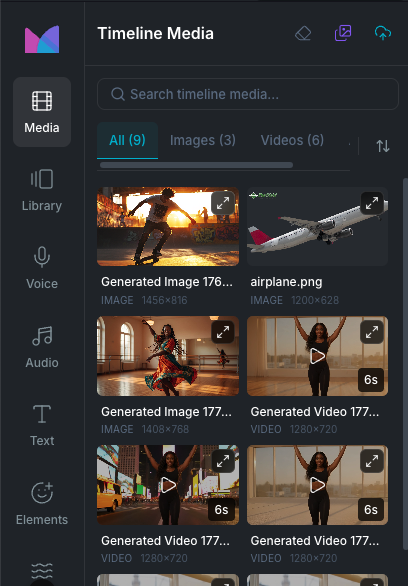
The Media Panel shows media that is currently used in your project's timeline. Unlike the Library Panel which gives you access to your full Library, the Media Panel focuses on the assets already in your edit, making it easy to track what you're working with, reuse clips, and clean up unused media.

Click Media in the sidebar rail to open it.

Media Panel

Panel header

The top of the panel includes three action buttons:

  • Cleanup: remove media that is no longer used in the timeline. See Cleanup unused media.
  • Stock Media: open the stock media browser to search and import free assets. See Stock Media.
  • Import Media: open the upload modal to add files from your computer or import from a URL. See Import Media.

Use the search bar to filter by media name or AI prompt text. Results update as you type.

Media tabs

Filter by type using the tabs below the search bar:

  • All: every asset on the timeline with a total count.
  • Images: image files only.
  • Videos: video files only.
  • Audio: audio files only.

Each tab shows the number of matching items in parentheses.

Sort

Click the sort button next to the tabs to change the display order:

  • Newest Created (default)
  • Oldest Created
  • Name (A-Z)
  • Name (Z-A)

Click the same sort option again to clear it.

Media grid

Media is displayed in a two-column grid. Each card shows:

  • A thumbnail preview (images and videos show a visual preview, audio shows a waveform icon).
  • A duration badge for videos and audio.
  • A usage count badge showing how many times the asset appears on the timeline (e.g. "x3"). Only shown when an asset is used more than once.
  • The asset name, type label, and dimensions.

Adding media to the timeline

Even though the Media Panel shows what's already on the timeline, you can still insert additional copies:

  • Click any media item to insert another instance at the current playhead position.
  • Drag and drop a media item onto the timeline to place it on a specific track and time position.

After inserting, the new clip is automatically selected and scrolled into view.

Media preview

Hover over a media item and click the expand button in the top-right corner of the thumbnail to open a larger preview.

  • Images display at a larger size.
  • Videos play automatically with playback controls.
  • Audio shows a player with playback controls.

The preview includes an Add to Timeline button and a More Options menu with the full set of right-click actions.

Right-click actions

Right-click any media item to open a context menu:

  • Add to Timeline: insert another instance at the playhead position.
  • View Details: open the full media detail view. See Media Details.
  • Open in AI Gen Studio: reopen the asset in its original AI Gen Studio session. Only shown for assets created in AI Gen Studio.
  • Copy AI Prompt: copy the generation prompt to your clipboard. Only shown for AI-generated assets.
  • Add to Favorites / Remove from Favorites: toggle quick-access status.
  • Move to Folder: move the asset to a folder in your Library. Not available for shared media.
  • Rename: change the asset name.
  • Download: save the file to your computer.
  • Remove from Timeline: remove all clips using this media from the timeline. This does not delete the media from your Library.
  • Delete: permanently delete the media from your Library and remove it from the timeline.

Right-clicking empty space in the panel shows options to Import Media, Stock Media, or Cleanup Unused.

Cleanup unused media

Over the course of editing, you may end up with media in the panel that is no longer used on the timeline. Click the Cleanup button (eraser icon) in the panel header to remove these unused items from the panel.

Cleanup does not delete media from your Library. It only removes items from the Media Panel that no longer appear in any timeline clip.

Drag and drop files into the panel

You can drag files from your computer directly into the Media Panel to import them. The panel detects the file type and routes it accordingly:

  • Images, videos, and audio open the upload modal and are automatically inserted at the playhead after upload.
  • PDF and PPT/PPTX files open the document import flow.
  • Spreadsheet files (CSV, XLSX) open the spreadsheet import flow.
  • .wayaframe files open the project import flow.

Media Panel vs Library Panel

Media PanelLibrary Panel
ShowsMedia used in the current timelineYour entire Library
Folders and collectionsNoYes (Favorites, Shared, Saved Groups, Folders)
Usage countYes (shows how many times each asset appears)No
Remove from TimelineYesNo
Cleanup unusedYesNo
Used forManaging assets in your current editBrowsing and adding new assets

Wayaframe Documentation