Skip to content

Text to Shape

Text to Shape converts a text clip into editable vector shapes. Each character becomes an independent shape with its own editable outlines that you can move, resize, recolor, and animate individually. This is useful when you need precise control over individual letters, want to create custom logo-style text layouts, or need to modify the actual shape of characters.

Text to Shape conversion

How to access

There are three ways to convert text to shapes:

  • Right-click menu: right-click a text clip on the canvas and select Convert to Shape.
  • Selection toolbar: use the menu in the floating toolbar above the selected text clip.
  • Property panel: select a text clip, open the Text tab, expand the Advanced section, and click Convert to Shape.

Conversion modes

Both access points offer a submenu with two modes:

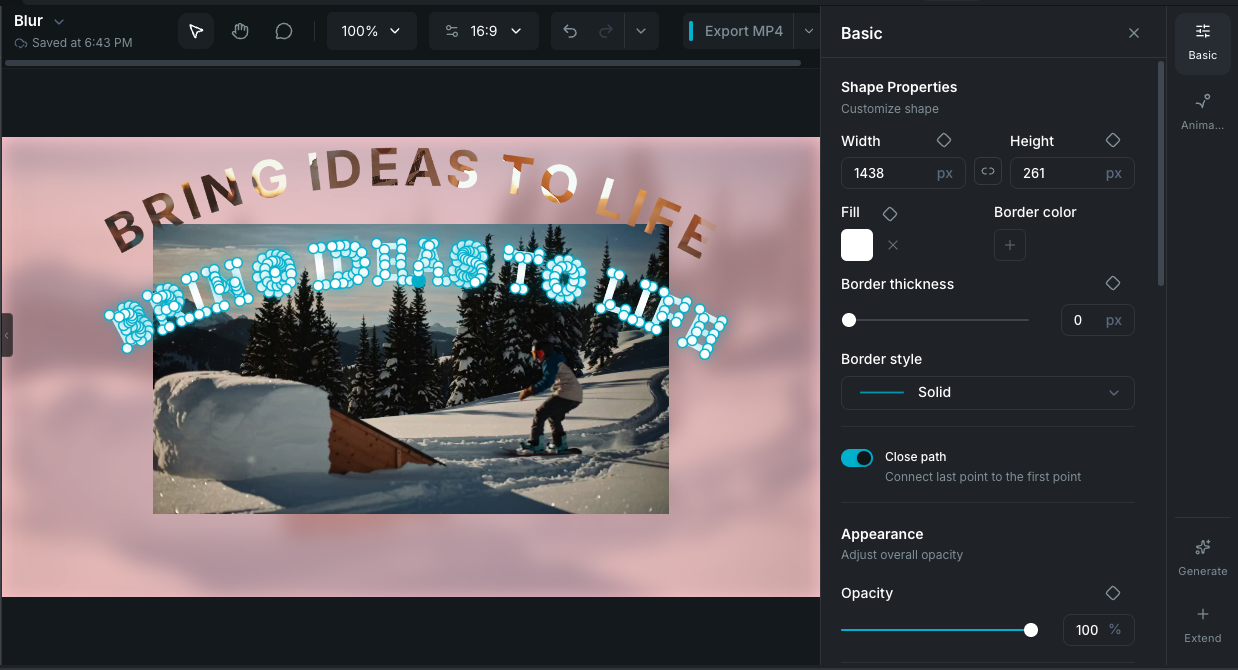
  • Multiple shapes: each character becomes a separate shape clip. This gives you individual control over every letter. This is the default.
  • Single shape: the entire text becomes one combined shape clip with all characters merged together.

What happens during conversion

  1. The text clip is converted into vector shape outlines based on the current font and styling.
  2. The original text clip is removed from the timeline.
  3. New shape clips replace it, preserving the text's position and timing on the timeline.

If the text has underlines enabled, they are converted into separate rectangular shape clips.

What's preserved

  • Fill color and stroke (color, width).
  • Opacity, blend mode, and drop shadow.
  • Filters and color adjustments.
  • Animations: keyframe animations transfer to the resulting shape clips.
  • Text path layout: if Text Path is enabled, characters are positioned along the path before conversion.

What changes

  • The result is no longer editable as text. You cannot change the wording, font, or text-specific properties after conversion.
  • Each character is a shape clip with vector control points that you can edit on the canvas.

Using converted shapes as masks

Once converted, each character is a shape clip that can be used as a mask. Use a letter shape to crop another clip to its outline, or enable overlay masking to cut text-shaped windows into the content below. Use Single shape mode when you want the entire word or phrase to act as one mask, or Multiple shapes mode when you want individual letter masks. This opens up creative possibilities like revealing video through letter shapes.

Reverting

Text to Shape cannot be reversed directly. Use undo (+Z) immediately after conversion to restore the original text clip. The entire conversion is grouped as a single undo step.

Wayaframe Documentation