Skip to content

Grouping

Grouping lets you combine multiple clips into a single unit on the timeline. Once grouped, you can move, resize, duplicate, and manage the clips together without affecting their individual properties. You can also open a group to edit the clips inside it without ungrouping.

Creating a group

Select two or more clips on the timeline or canvas and press +G. The selected clips are wrapped into a group that appears as a single bar on the timeline.

You can also right-click the selection and choose Group from the context menu.

Not all clips can be grouped. Locked clips, subtitle-managed clips, and clips already inside another group cannot be added to a new group. If a stitched media sequence is partially selected, you must select the entire sequence before grouping.

How groups appear on the timeline

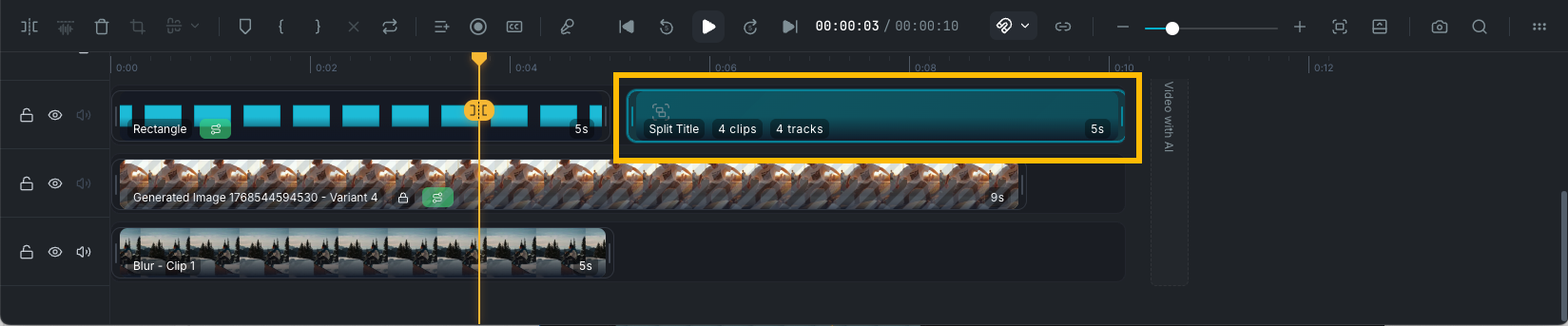
A group displays as a single collapsed bar spanning from the earliest clip to the latest clip in the group. The bar shows:

  • The group name (default: "Group", auto-numbered if multiple groups exist).
  • An item count (e.g. "3 items").
  • A track count if the group spans multiple tracks (e.g. "2 tracks").
  • The duration.

Grouped clips on the timeline

Selecting a group

Click the group bar on the timeline to select it. This selects all clips in the group at once. The property panel shows group-specific information:

  • Group name: editable text field.
  • Items: the number of clips in the group.
  • Tracks: the number of tracks the group spans.
  • Open group: button to enter focused editing mode.
  • Ungroup: button to dissolve the group.

Moving a group

Drag the group bar to reposition all member clips together. Every clip in the group shifts by the same amount, preserving their relative positions and timing.

Trimming a group

Drag the start or end handles of the group bar to trim the visible range. This adjusts which portion of the group is visible on the timeline without modifying the individual clips inside.

Renaming a group

Right-click the group bar and select Rename group, or edit the name directly in the property panel.

Opening a group

To edit the individual clips inside a group, open it by:

  • Double-clicking the group bar on the timeline.
  • Right-clicking the group bar and selecting Open group.
  • Clicking Open group in the property panel.

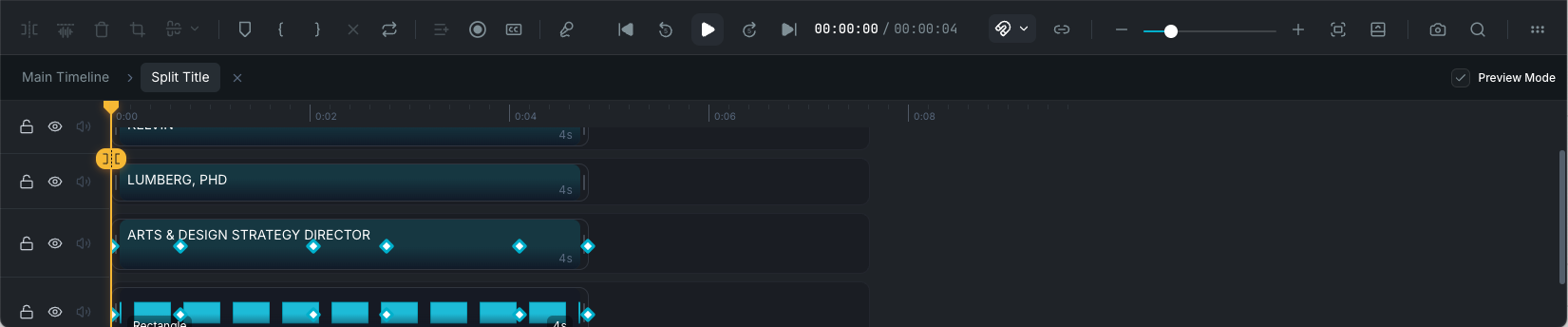
When a group is open, the timeline switches to a focused view showing only the clips inside that group.

Group editing view

A tab bar appears at the top of the timeline with breadcrumb navigation:

Main Timeline > Group name ×

Click Main Timeline to return to the full timeline, or click the × on the group tab to close it.

What changes inside an open group

  • The timeline ruler resets to start at 0, showing the group's local duration.
  • Only clips belonging to the group are visible and editable.
  • You can select, move, trim, split, and edit individual clips as usual.
  • Adding or removing tracks is not available while inside a group.
  • Preview mode: toggle Preview Mode in the group tab bar to switch between seeing only the group's content on the canvas or the full timeline context. This helps you check how the group looks alongside the rest of your project while editing inside it.

Ungrouping

Select a group and press ++G to ungroup. The group wrapper is removed and the clips return to being independent items on the timeline. Their positions and properties are unchanged.

You can also right-click the group and select Ungroup, or click Ungroup in the property panel.

Saving a group to the Library

Right-click a group bar and select Save group to library. The group is saved as a reusable asset in the Saved Groups collection in your Library, including all its clips, timing, and structure.

To reuse a saved group, open the Library Panel in the editor, navigate to Saved Groups, and drag the group onto the timeline. The clips are inserted with fresh IDs while preserving their relative positions and properties.

Copy, paste, and duplicate

Groups work with standard clipboard operations:

  • Copy +C / Cut +X / Paste +V: the group structure is preserved. Pasted clips get new IDs and are wrapped in a new group automatically.
  • Duplicate +D: creates a copy of the group and its clips, placed after the original.

Wayaframe Documentation